# Uploading photos
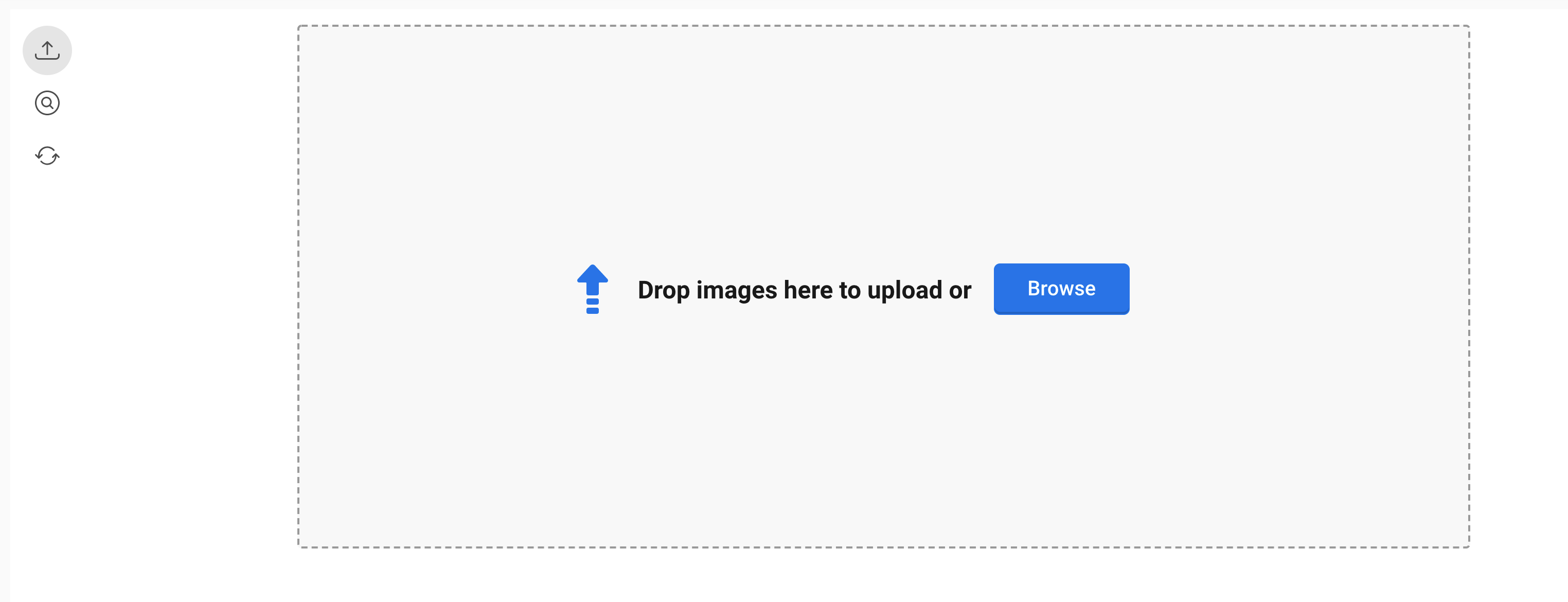
When you have opened Photo Uploader you see the possibility to upload photos. You can choose browsing or you can drag and drop the photos. If you drag and drop a folder, all the photos in the folder will be chosen.
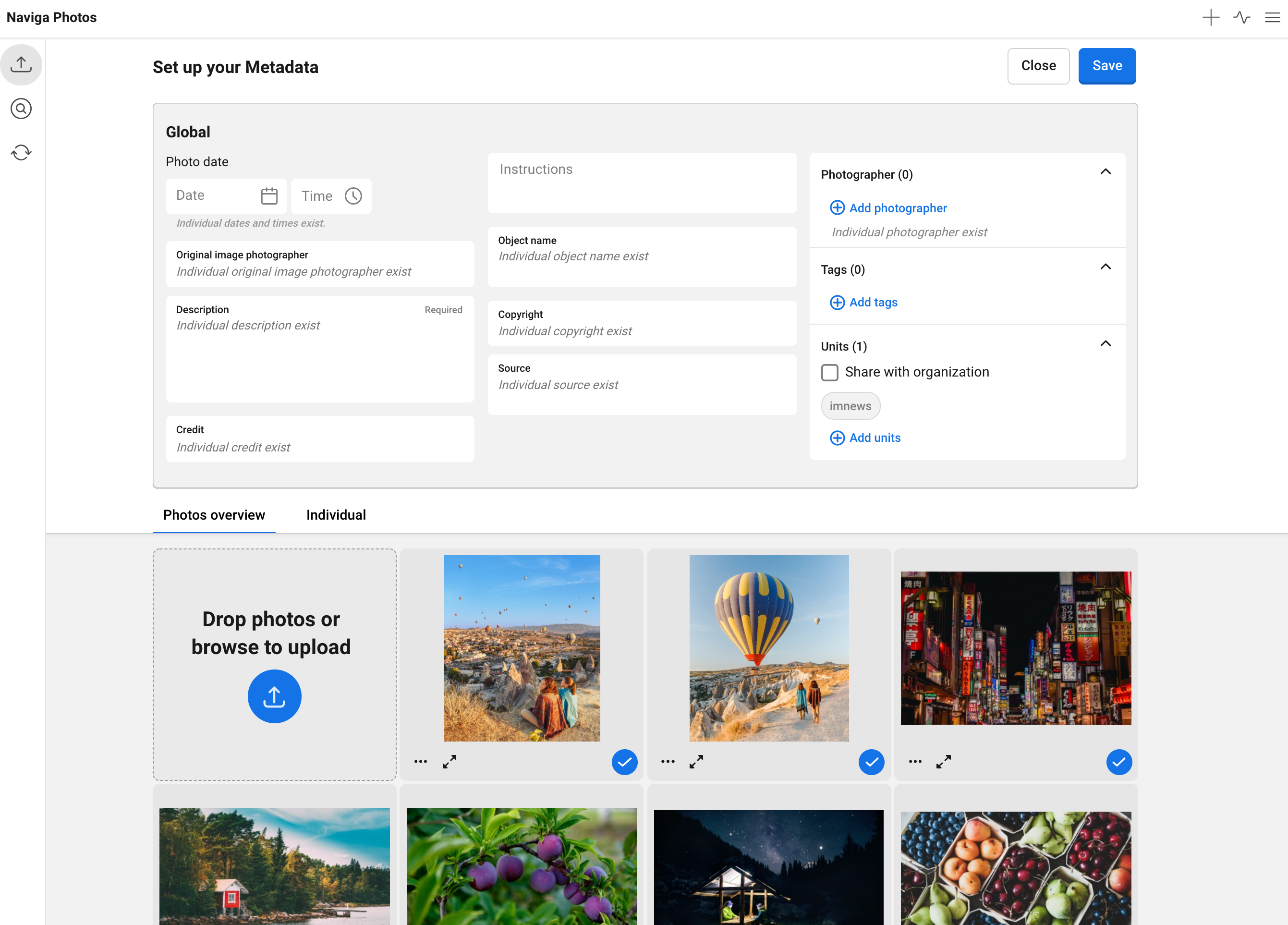
As soon as you have made one of the choices you will see all your photos in a list, with global metadata settings above. You can see them as thumbnails in the tab Photos overview or in a more detailed view in the tab Individual. This will be explained later in this manual. In top of the tab Photos overview, to the left of the first thumbnail, you have the possibility to choose to add more photos by browsing or drag and drop.
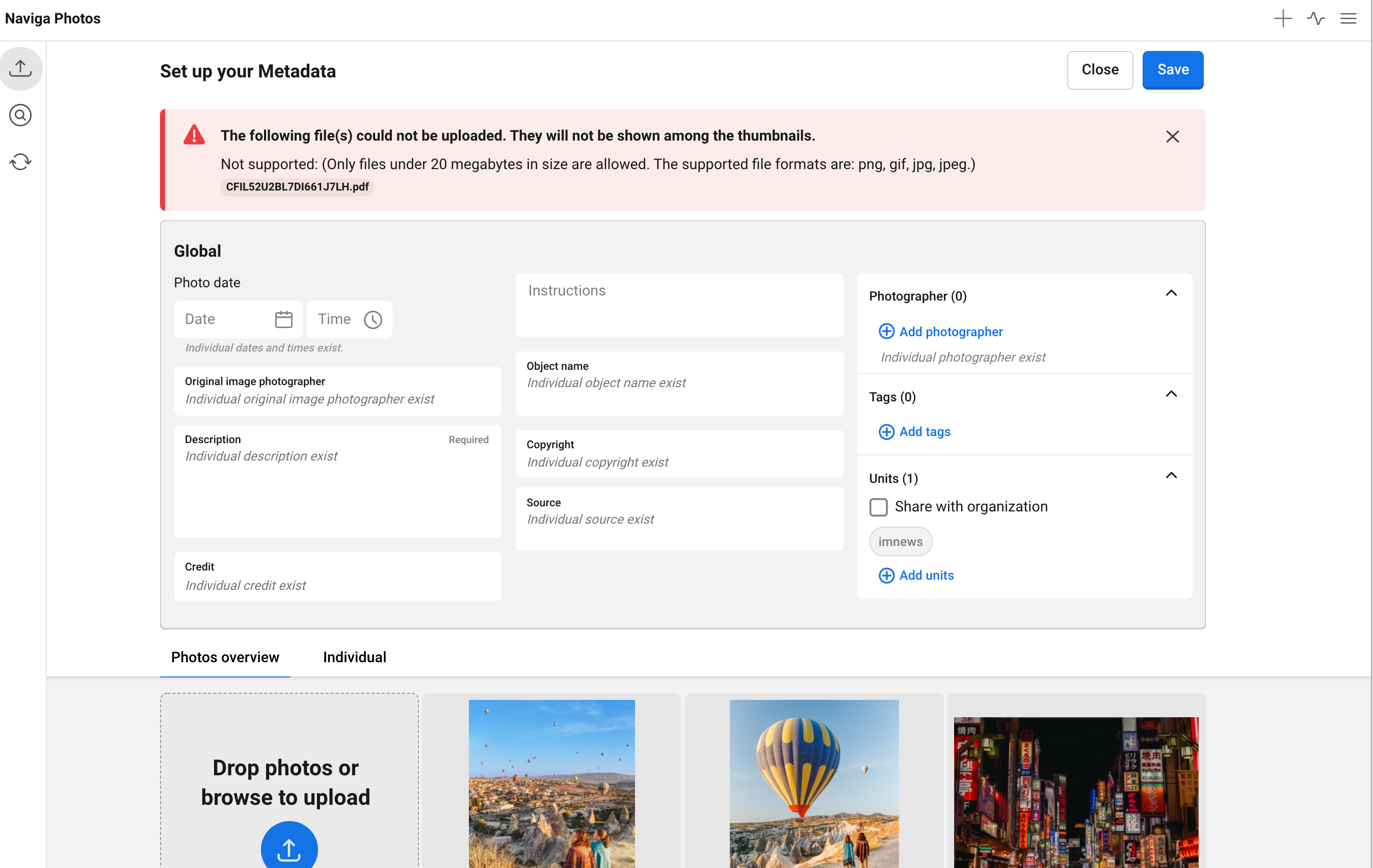
The file formats you can upload are jpg, jpeg, gif and png. If you try to upload a photo with the wrong file format you will be notified. You will also be notified if you try to upload a photo that is bigger than allowed.
To navigate with the keyboard you use the tab key. When you are in the photo list you navigate with the arrow keys.
If you want to cancel the upload you click on Close. You will be back to the first step if you do so and you can start all over again.
---
# Agent Instructions: Querying This Documentation
If you need additional information that is not directly available in this page, you can query the documentation dynamically by asking a question.
Perform an HTTP GET request on the current page URL with the `ask` query parameter:
```
GET https://docs.navigaglobal.com/naviga-photos/3.0.4-2/user-guide/select-photos-for-uploading.md?ask=
```
The question should be specific, self-contained, and written in natural language.
The response will contain a direct answer to the question and relevant excerpts and sources from the documentation.
Use this mechanism when the answer is not explicitly present in the current page, you need clarification or additional context, or you want to retrieve related documentation sections.