# Metadata settings
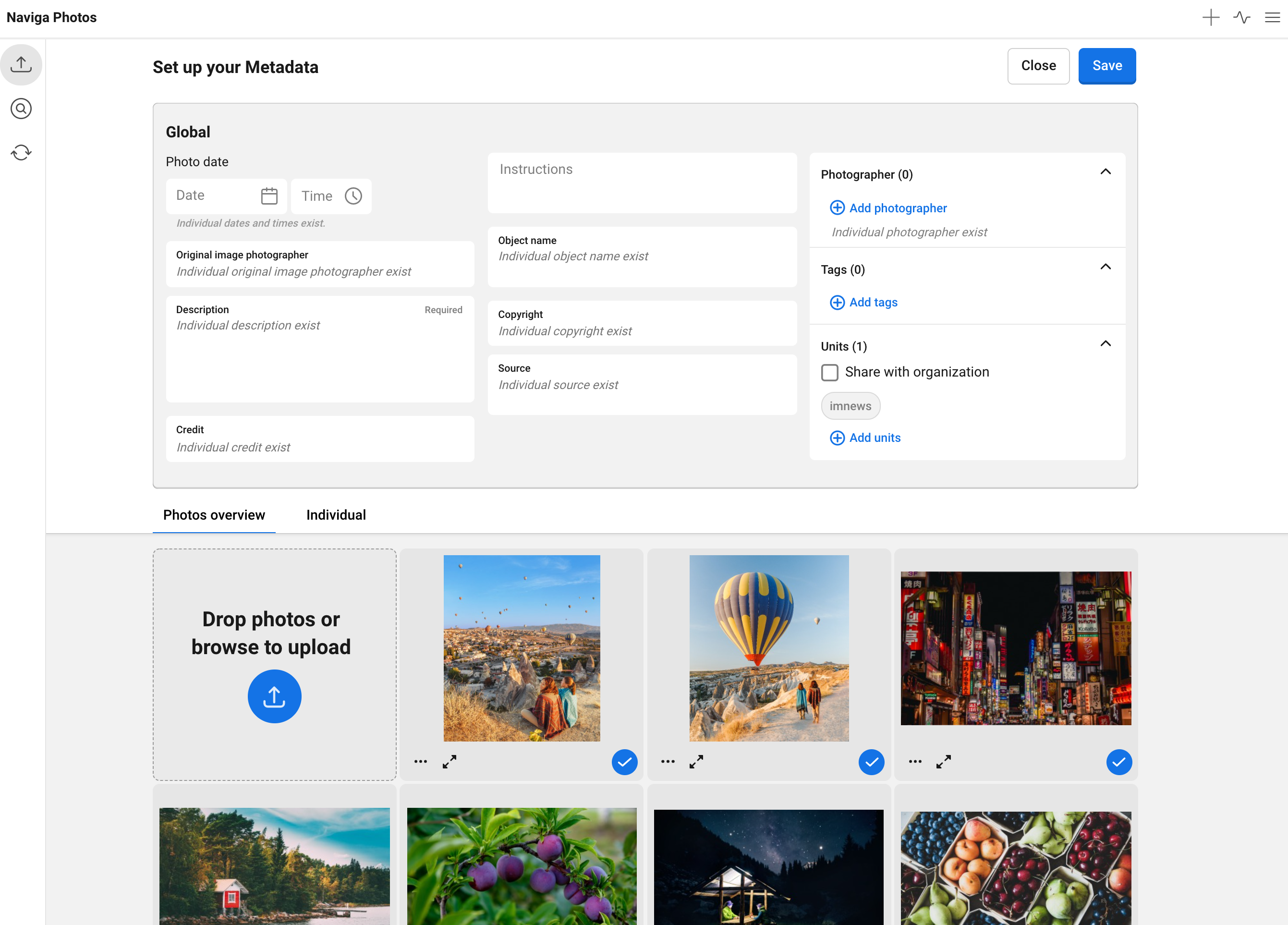
Above the photo list you have the global metadata**,** this is were you can set the same metadata for all your photos at the same time.
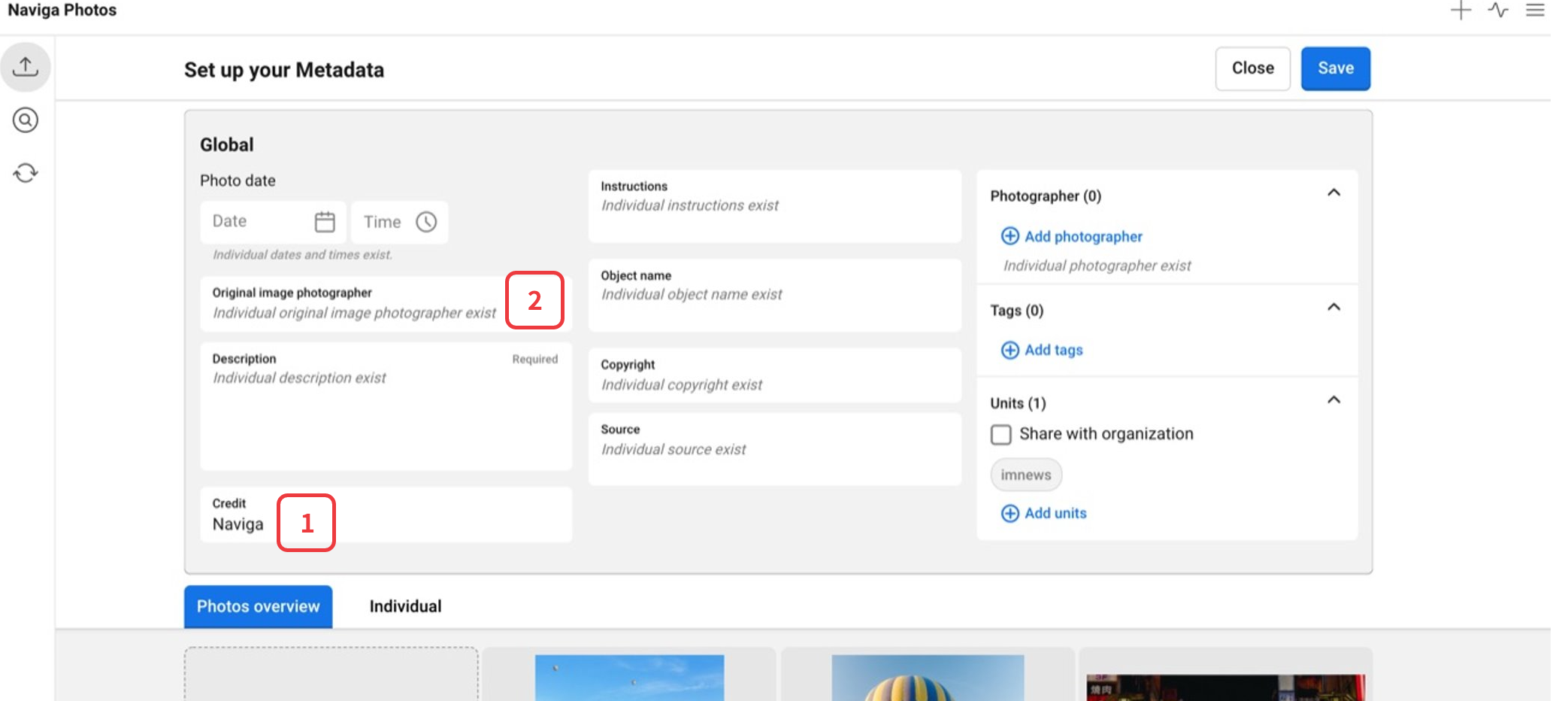
If the photos have the same metadata on all your selected photos. In this case you see this metadata presented in the global settings. (1) If some of the photos have metadata but others photos do not, or all the photos has metadata but not the same on every photo, you will get notified by this with the note that individual settings exists so you don't overwrite them by mistake. (2)
If you want to manually give all the photos the same metadata, you fill in the metadata settings in the global settings and all your photos will get that metadata automatically. If you make settings in a field that already has information, like the two examples above, all the photos will have your new settings.
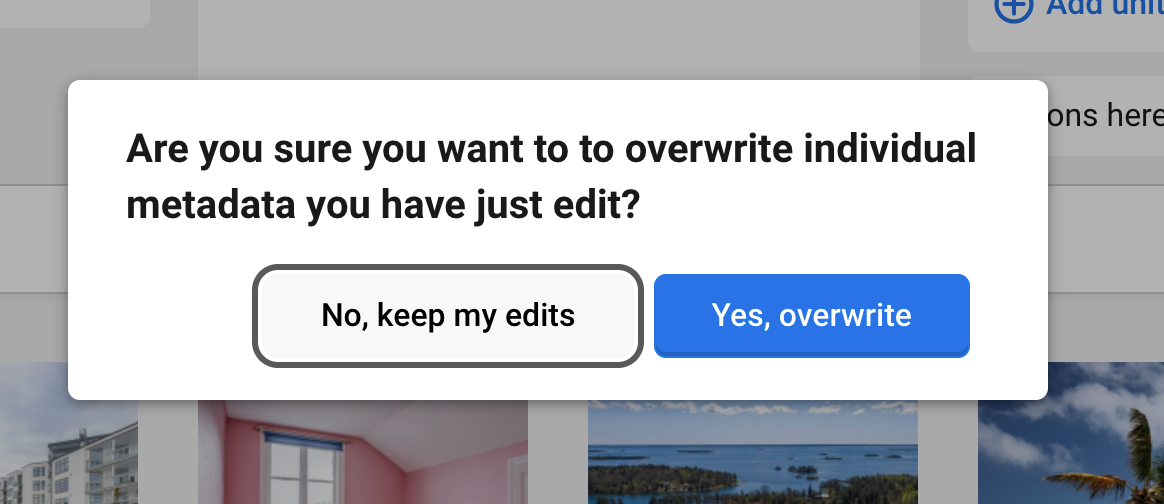
If you before you write in the global settings has given one single photo individual metadata, you will get a warning that you will overwrite all individual data you earlier have made.
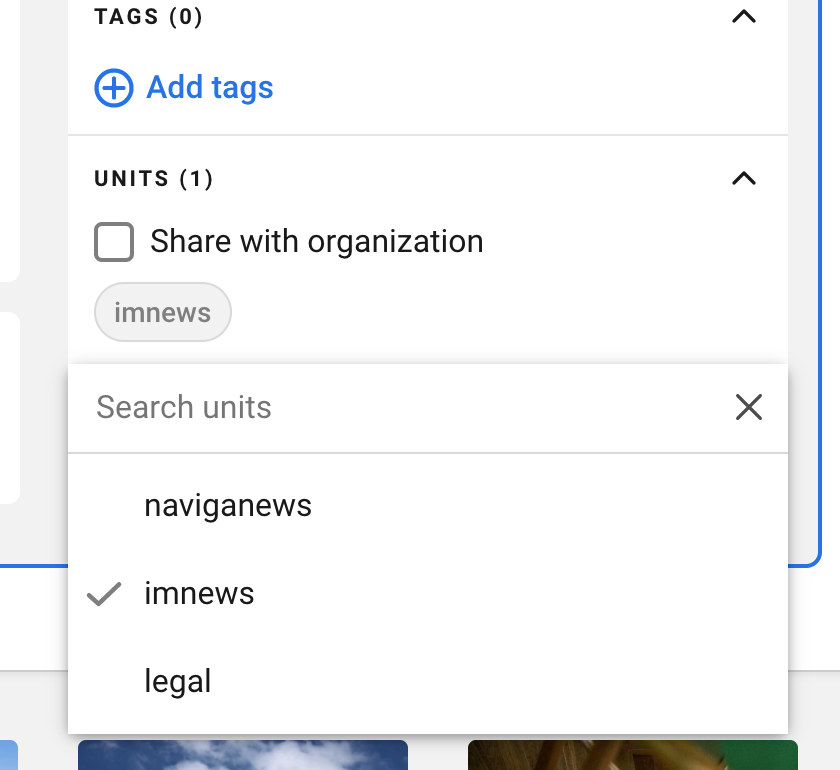
 In this step you also make the settings for which units the photos will have. You can share it with the whole organization or with one or many additional units if you want (units the logged in user belongs to).
 #### Adding more photos to the uploading after you have changed the global metadata
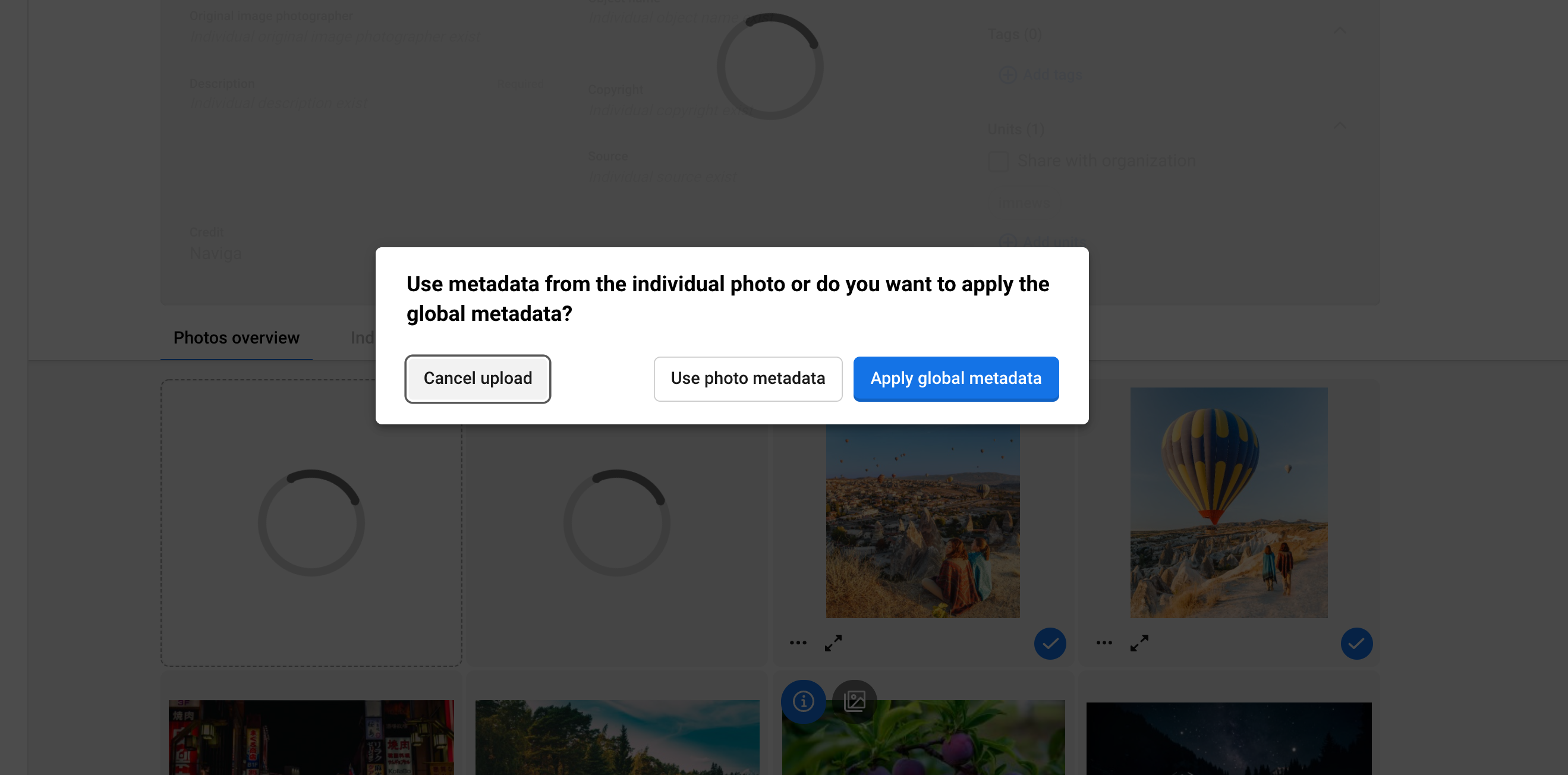
If you choose to add more photos to your uploading, after you have made changes in the global metadata, you will get a question about this.
1. You can choose to use the global metadata and the photo you add to the list will get the same.
2. You can choose to use the original metadata of the new photo and it will not get the global metadata.
3. You can choose to cancel to add this photo to your upload.
When you have made the settings you click on Save and the upload will start.
If you want to cancel the process you click on Cancel and you will end up on the first step again.
{% hint style="info" %}
### Metadata from the photos
Metadata is mapped from XMP and IPTC to Naviga Photos, this means that if you use Photoshop or other tools to add metadata before import, this metadata will be visible (and editable) in Naviga Photos.
{% endhint %}
#### Adding more photos to the uploading after you have changed the global metadata
If you choose to add more photos to your uploading, after you have made changes in the global metadata, you will get a question about this.
1. You can choose to use the global metadata and the photo you add to the list will get the same.
2. You can choose to use the original metadata of the new photo and it will not get the global metadata.
3. You can choose to cancel to add this photo to your upload.
When you have made the settings you click on Save and the upload will start.
If you want to cancel the process you click on Cancel and you will end up on the first step again.
{% hint style="info" %}
### Metadata from the photos
Metadata is mapped from XMP and IPTC to Naviga Photos, this means that if you use Photoshop or other tools to add metadata before import, this metadata will be visible (and editable) in Naviga Photos.
{% endhint %}