> For the complete documentation index, see [llms.txt](https://docs.navigaglobal.com/newsroom-planner/llms.txt). Markdown versions of documentation pages are available by appending `.md` to page URLs; this page is available as [Markdown](https://docs.navigaglobal.com/newsroom-planner/6.1.0-1/user-guide/copying.md).
# Copying
You can copy an already created event or plan. If there are linked plans and assignments with linked articles or photos to that event, they are also able to be copy.
#### Summary
* You can copy an event, and get a copy of all linked plans, assignments and articles. If you have linked photos, the links will also follow to the copy.
* You can copy a plan, and get a copy of all linked assignments and articles. If you have linked photos, the links will also follow to the copy.
* You can unselect one plan or an assignment in the package and this one will not be copied.
**Where can you reach the copy function?**
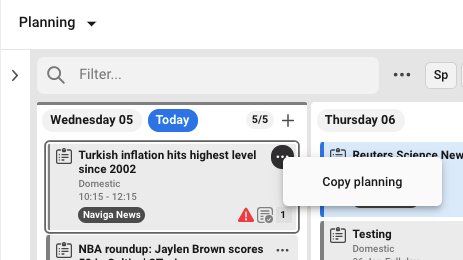
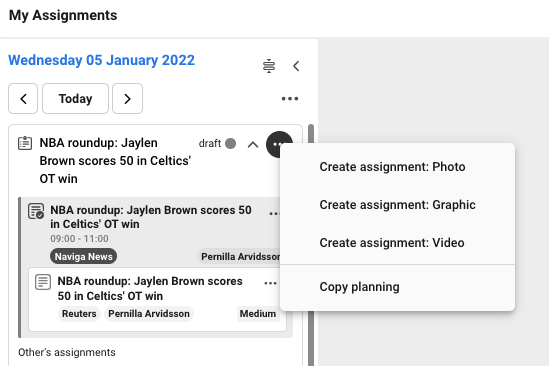
The function is reachable on the card in the calendar view in Newsroom Planner and in My assignment.
#### Copy dialogue
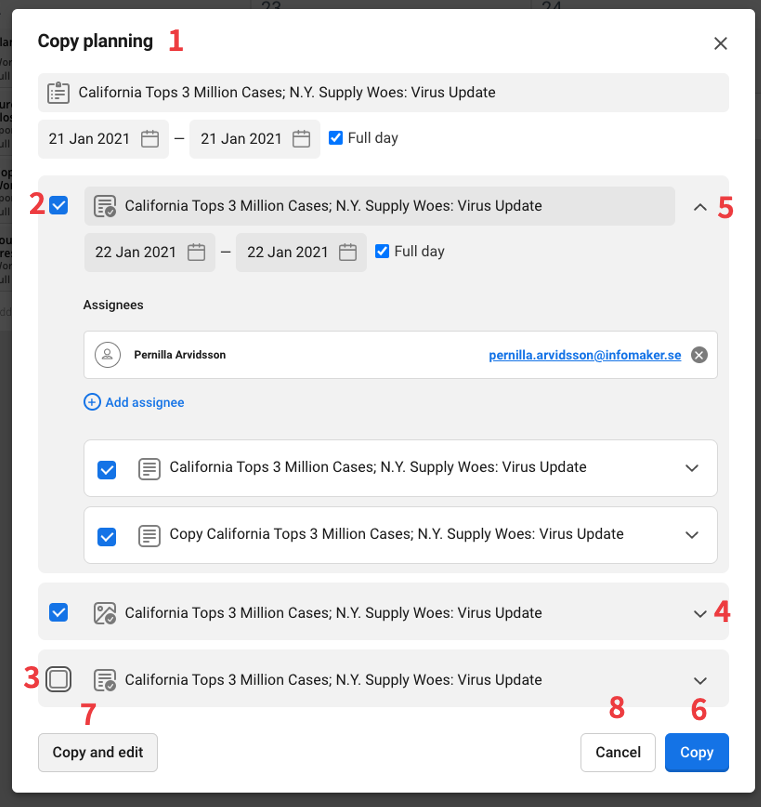
* When you choose to copy an event or a plan, a dialogue is opened.The headline of the dialogue will be Copy event, or Copy plan, depending on which type you have chosen to copy. (1)
* As default, all objects are selected to be copied. (2)
* You can deselect objects to not be copied (3).
* As default, all objects are collapsed when the dialogue is opened. (4)
* Each object can be expanded by clicking on the chevron. (5)
Before you do the copying, you can change titles and date/time on the planning objects. You can change assignees on the assignments.
**Copying**
When you have made changes to the new items, you have three options:
* Copy - the dialogue closes and objects are created in the background. You are back where you where when you chose to copy (6).
* Copy and edit - the objects are created. A modal with the copied package is opened where you can make more changes if you want to (7).
* Cancel - the dialogue is closed and nothing is created (8).
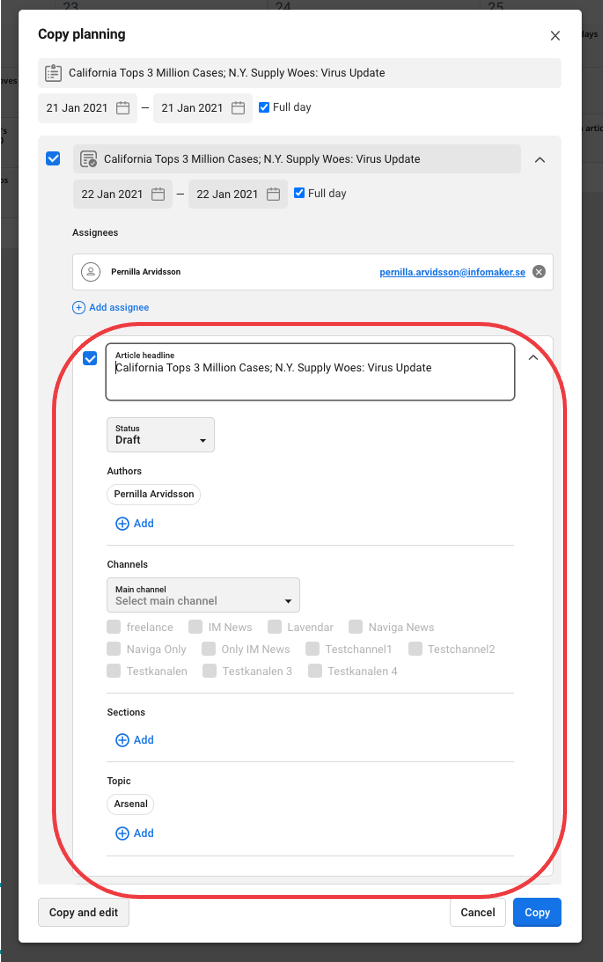
When you expand one of the articles in the assignment it will look like below. Perhaps you see other possibility of copying specific metadata than you see in the example below. It is an admin setting which fields that are shown. There is also a admin setting about which fields should be automatically copied or not. In the example below you see that you get a suggestion about topic, but channels are empty. This is because the admin, in the admin settings, has said "copy the topic automatically but remove the channels".
---
# Agent Instructions
This documentation is published with GitBook. GitBook is the documentation platform designed so that both humans and AI agents can read, navigate, and reason over technical content effectively. Learn more at gitbook.com.
## Querying This Documentation
If you need additional information that is not directly available in this page, you can query the documentation dynamically by asking a question.
Perform an HTTP GET request on the current page URL with the `ask` query parameter, and the optional `goal` query parameter:
```
GET https://docs.navigaglobal.com/newsroom-planner/6.1.0-1/user-guide/copying.md?ask=&goal=
```
`ask` is the immediate question: it should be specific, self-contained, and written in natural language.
`goal` is optional and describes the broader end goal you are ultimately trying to accomplish on behalf of the user. GitBook uses it to tailor the answer towards what is most useful for that goal.
The response will contain a direct answer to the question and relevant excerpts and sources from the documentation.
Use this mechanism when the answer is not explicitly present in the current page, you need clarification or additional context, or you want to retrieve related documentation sections.