> For the complete documentation index, see [llms.txt](https://docs.navigaglobal.com/page-hub/llms.txt). Markdown versions of documentation pages are available by appending `.md` to page URLs; this page is available as [Markdown](https://docs.navigaglobal.com/page-hub/user/page-hub-5.0.0/functionalities.md).
# Functionalities
The Page Hub provides the user with the following functionalities:
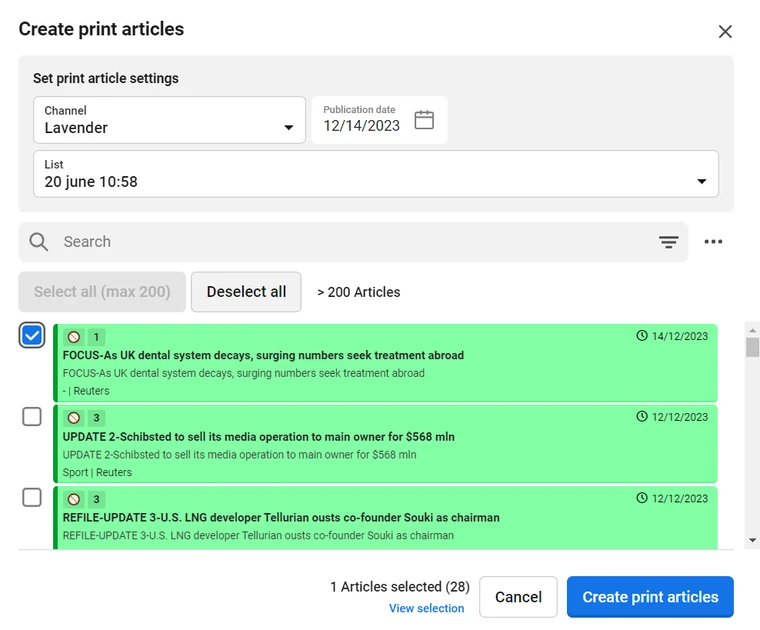
1. Create print articles/copies: This feature allows the user to add articles to lists to prepare for print copies of the selected articles in the list.\
This can be accessed using this button
\
\
A user can select the following:
a. Channel (target channel for the copies)
b. Publication date (for the target print articles)\
c. List (to attach print copies to, the list needs to be created before copying)\
d. Search articles to be copied and whos print copies will be added to the list, selected above\
e. Create print copies of the selected articles and add to the selected list
Create a list
2. Create Run: A run can be created by a user to overwrite an existing edition or to create a new edition.\
a. Select Product - This is the functionality to select a product, which exists in the Publisher software, from the drop down list. The results can be narrowed down by filtering through text search.
b. Select Date - The user will then select the date for which the Run needs to be executed.
c. Select Edition - An existing edition needs to be selected if the user wants to overwrite it or else the user will toggle the New Edition toggle button to enter the new edition name

d. Once the Product and Date are selected the corresponding Dial, AdStack and StoryList values available in the Publisher software are available in the dropdown list
e. The user then selects the Dial, AdStack and StoryList and then the Run button is enabled.

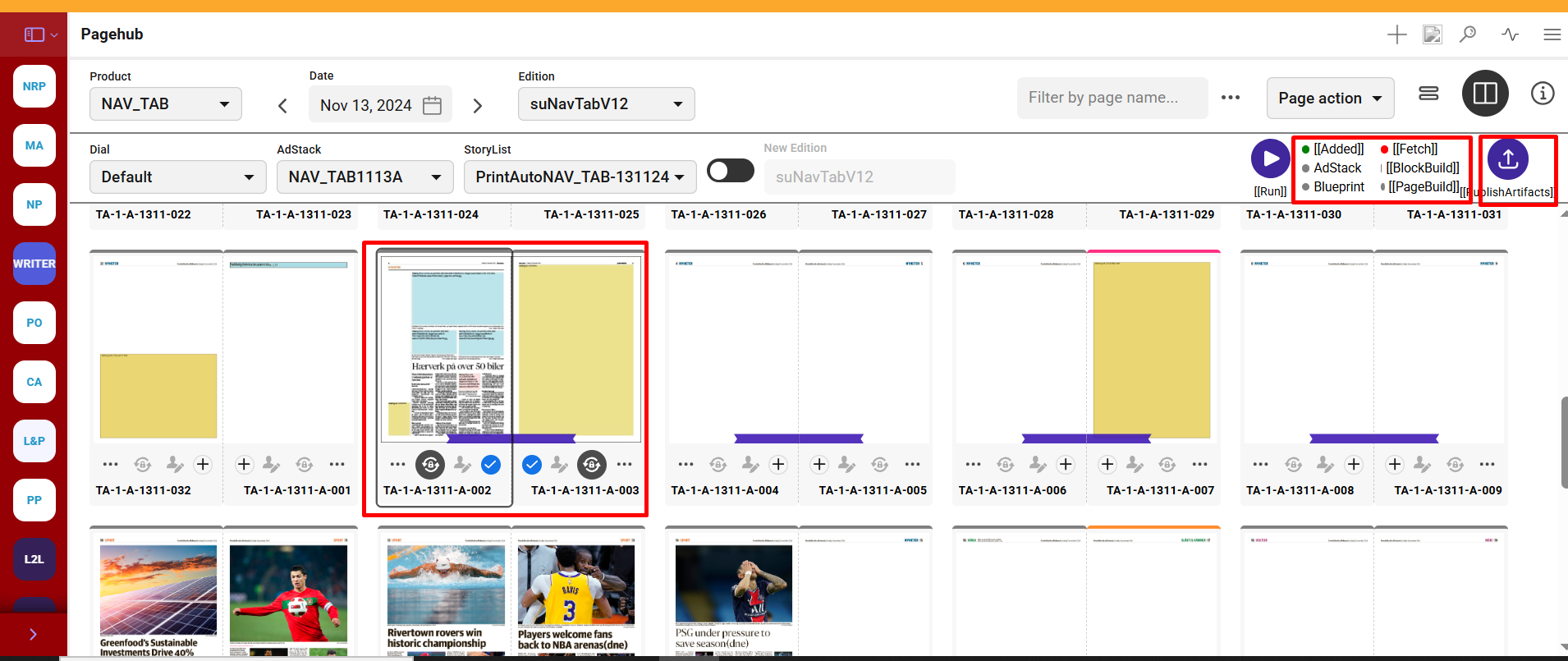
f. The user can then click the Run button to start a run. While a Run is in progress the user can see the Run go through important Publisher stages which are:
i. Added
ii. Fetch
iii. AdStack
iv. Block Build
v. Laydown
vi. Page Build\
\
Each stage have a status color of grey, orange, green and red. They mean the following:\
Grey - Stage not initiated\
Orange - Stage in progress\
Green - Stage completed successfully\
Red- Stage encountered error
Along with the statuses the user will also get notification in the Page Hub application and slack notifications can also be configured to send each run details over a pre determined slack channel.\
3. Publish Artifacts: Once a Run is successfully completed the Publish Artifacts button is then enabled which allows the user to to publish the successfully created Run artifacts (PDF and INDD files) to a predefined location which is configured in the Publisher software side.\
\
***Note:** From Page Hub Version 4.2.0 the Publish artifacts (export) settings are configurable from Page Hub settings under* [*Export tab*](/page-hub/admin/settings/configuration/page-hub-plugin/export-config.md)*.*\
*1. All editions that were run before Page Hub Version 4.2.0 if their pages need to be exported* \
*again from Page Hub Version 4.2.0 then make sure the run is executed again and file naming* \
*conventions are not updated in latest run (should be same as old edition)*\
*2. Export configuration needs to be done before using Publish Artifacts after upgrading, since this* \
*the old export functionality is no longer supported.*

{% embed url="" %}
Start a New Run
{% endembed %}
{% embed url="" %}
Publish Artifacts
{% endembed %}
4. Page Options: There are options on each page for a user to perform actions, the most important features are:
a. Freeze Page - This will mark the page as frozen which is used to prevent any updates from Publisher in any upcoming Runs.
b. Page - This allows the user to perform three functions:
i. Check out and download - A user can download the page as INDD file and edit the page locally in Adobe InDesign.
ii. Upload and check in - A user can upload a page in INDD format. When checking in a locally edited page, the page automatically gets Frozen.
iii. Reset checkout - A user can reset the checkout that was done on a page.
5. Override Section: Page Action options provide an option to override the section of the Page(s) by selecting the new section from the Section Sub menu.
{% embed url="" %}
Override Section
{% endembed %}
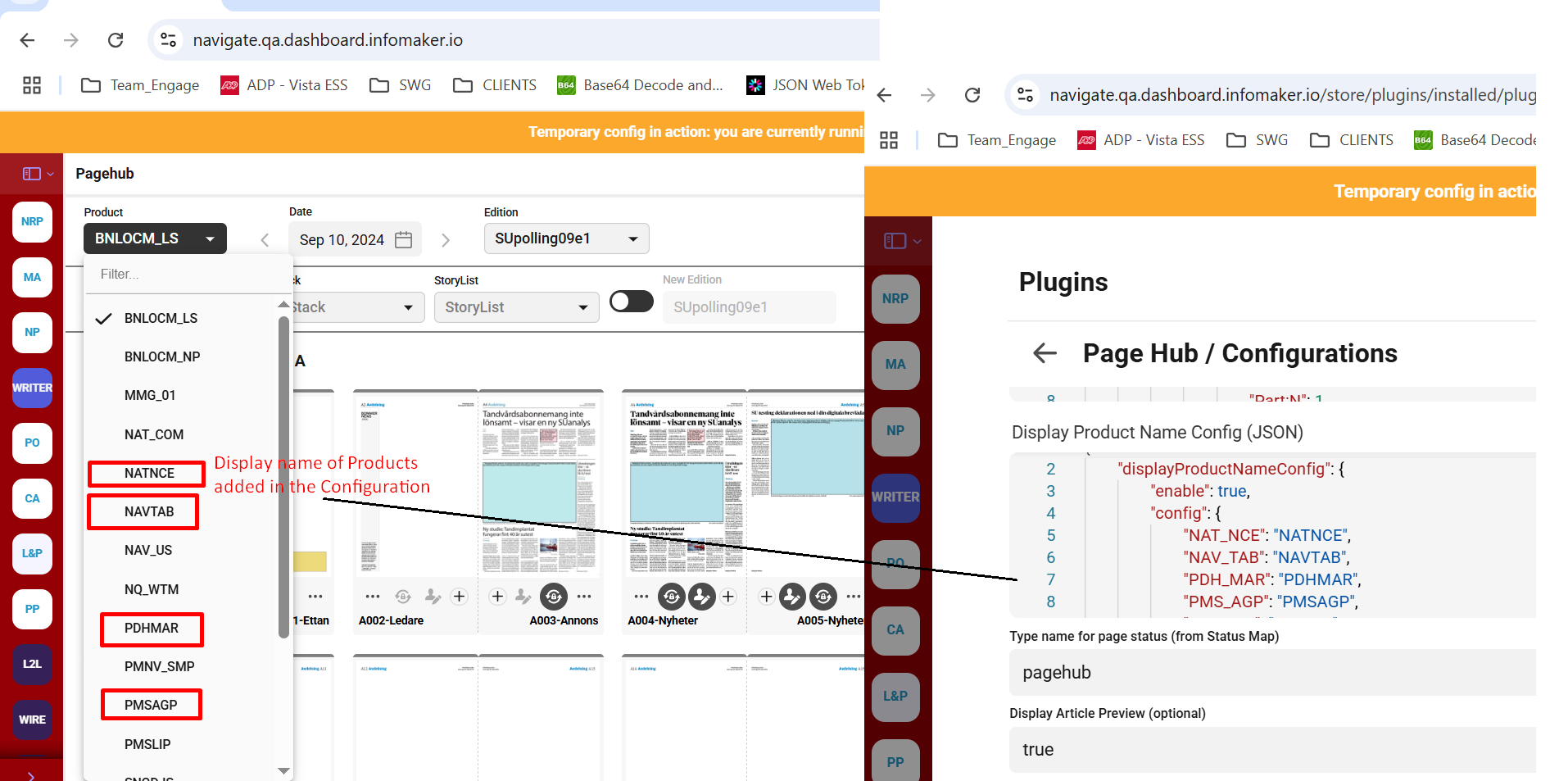
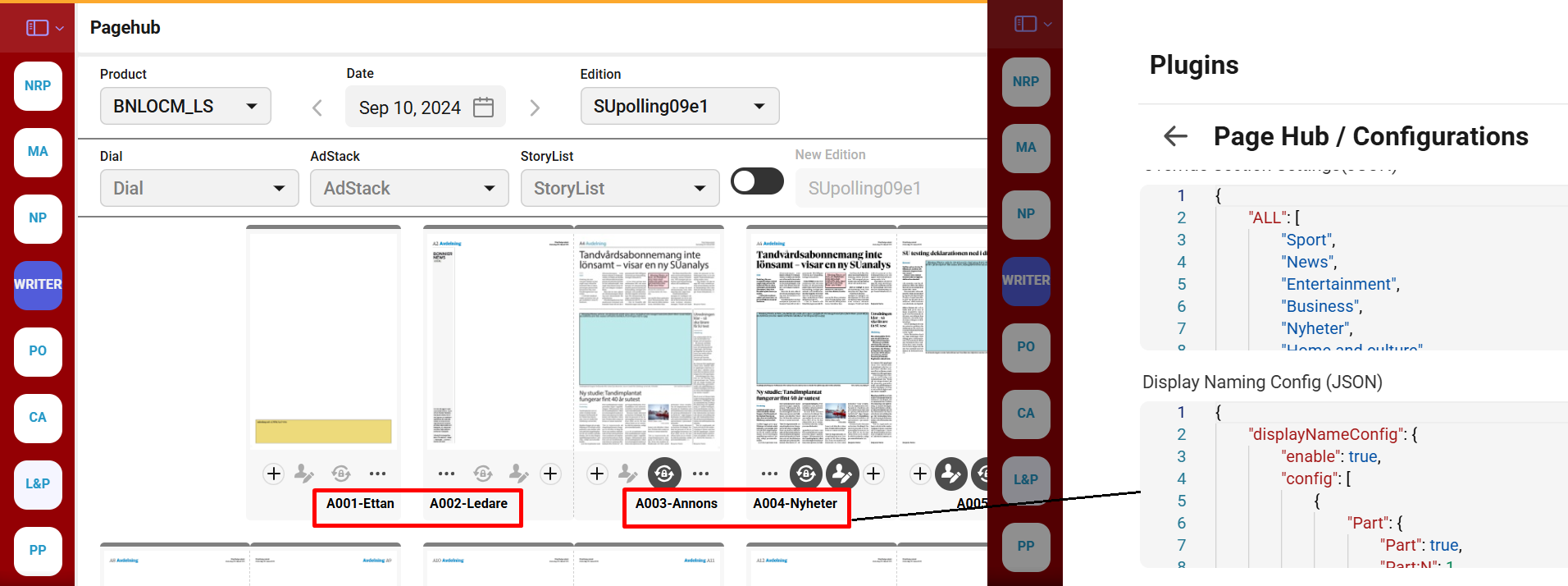
6. Configurable Display name for product and page names in Page hub using Page hub configuration.
PageHub now supports configurable display names for products in the product dropdown selector. The transformation is applied as per the new config area, and filtering operates on display names. If a display Product name is missing in config, the original product name is displayed.
Display Product name
PageHub now supports configurable display names for Pages. The transformation is applied as per the new config area. If a display name config is missing, the Publisher name is displayed as Page names.
Display Page name
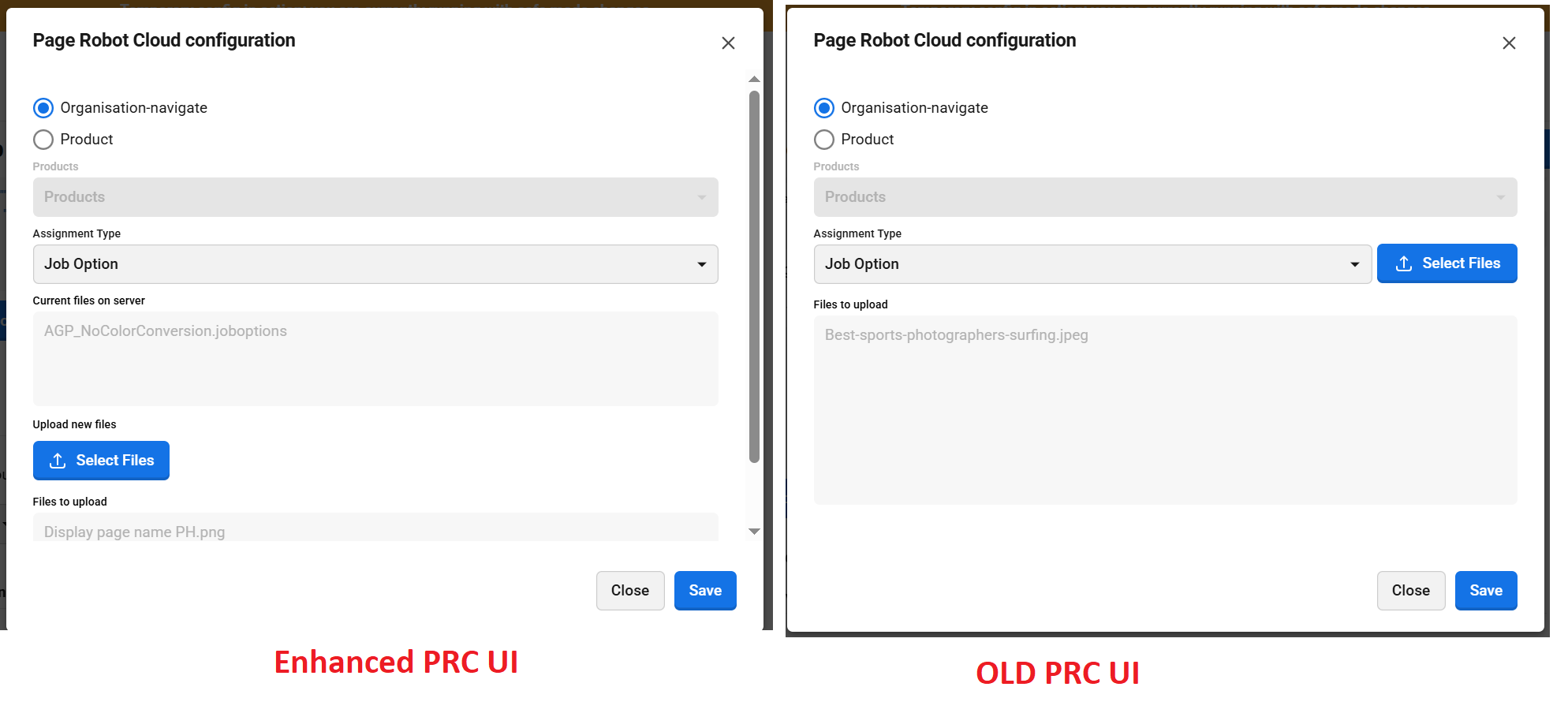
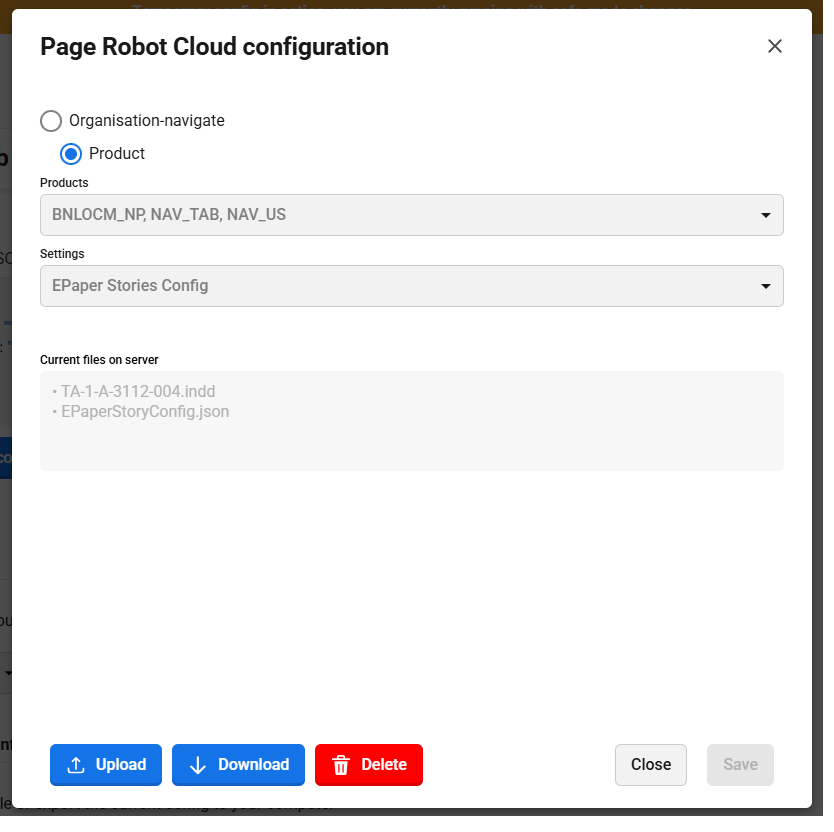
7. UI enhancements on “PageRobot Cloud config” dialogue box in Page hub configuration. In the new UI, the currently available files on the server will be displayed based on the selected organization or product.
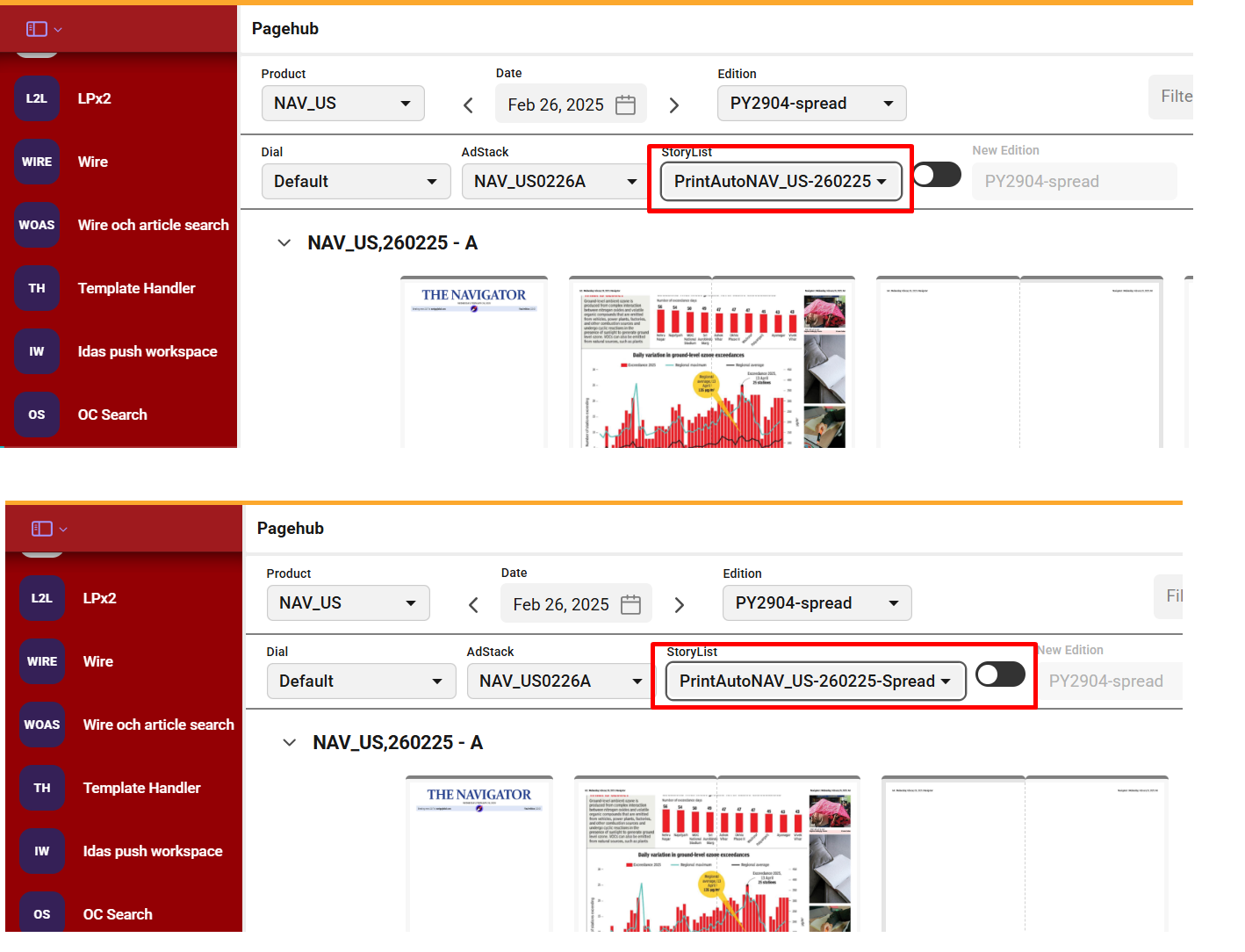
8. The width of the StoryList dropdown on PageHub adjusts dynamically based on its content.
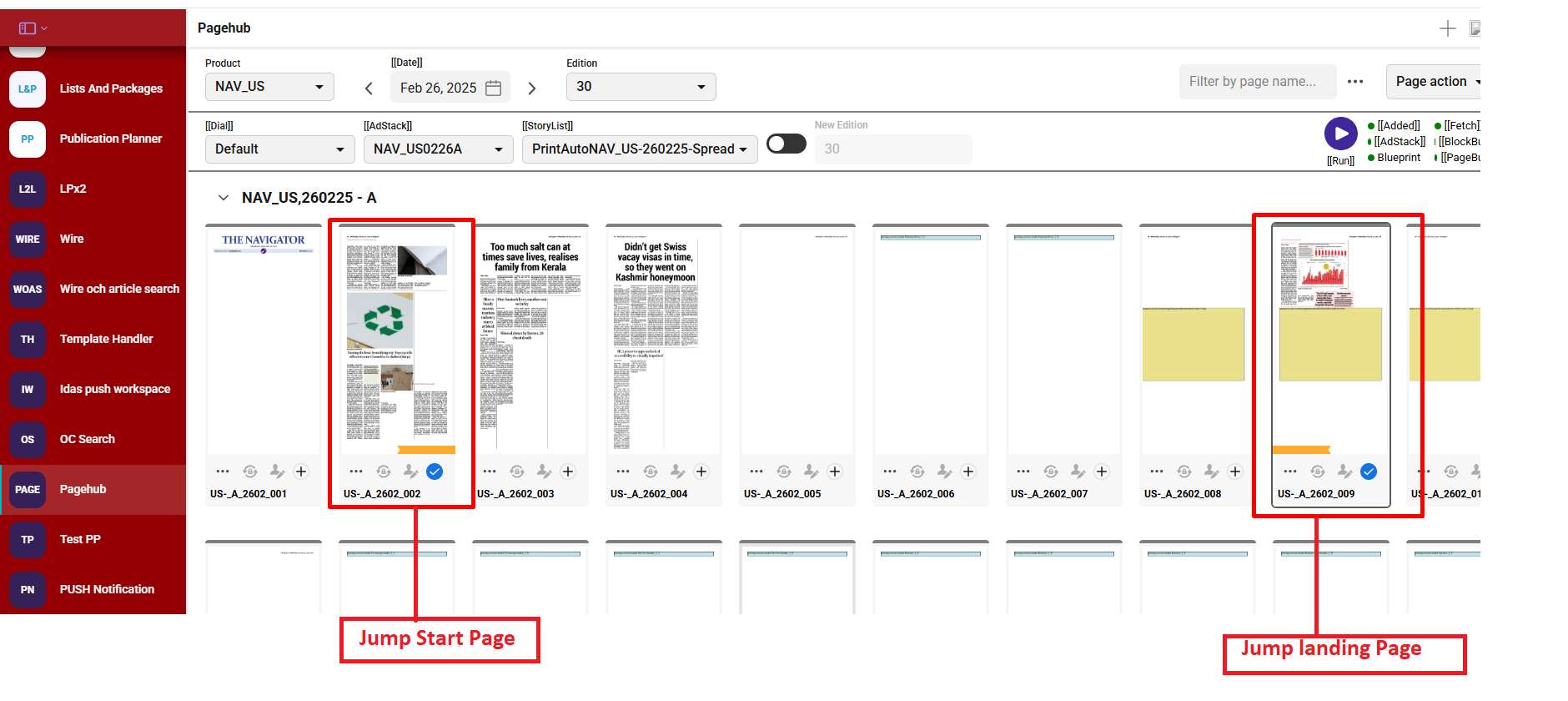
9. Jumps Visualization on Page Hub - In PageHub, an orange ribbon is used to visualize Jump documents by indicating both Jump start Page and the jump page. It also supports if a jump story needs to go to a double truck Pages.
**Example :** An article starts on page 2 and jumps to page 9. Both pages have the same jump section set and highlighted with orange ribbon.
Jump Visualization on Page hub
#### Important points related to jumps:
| Observation | Category |
| ----------------------------------------------------------------------------------------------------------------------------------------------------------------------------------------------------------------------------------------------------------------------------------------- | ----------- |
|
The following elements are supported:
Preamble
Citation
Fact
Byline
Images
Kicker
Image Caption
Headline
| Requirement |
| Jump headline is mandatory for an article to jump from one page to another in the current version. | Requirement |
| If image or any other element coordinates are present but no image exists, the run fails at the PageBuild step due to missing UID. | Gaps |
| No error messages are thrown for missing elements in Jump articles, as Flow only uses coordinates and doesn't receive the image UID. | Gaps |
| Dummy IDs set in laydown files still lead to PageBuild failures if the image is not actually present. | N/A |
| When Jump articles of different category (news, sports etc) and of same jump section are placed together on the front page, after section overrides are done, these articles jump to the landing page, but the related articles get removed. | Design |
| Jump articles have a unique priority (Priority X) that governs their placement. | Design |
| New page flag is not mandatory for Jump articles; position in the story list setup determines their placement. | Requirement |
| Meta section is not required for Jump articles since the Jump plugin handles their placement. | Design |
|
If a Jump article does not jump from the front page (source page) to the landing page:
The orange ribbon will not appear on the jump page.
metadata.json and getdata API will return "jumpDocument": false.
| Design |
|
A Jump article won't jump to a landing page if:
It is too small, or If the text line does not exceed the minimum number of line for overset that are configured in the MT setting for JUMP article.
The jump headline is missing in its jump data.
| Requirement |
|
If there are multiple page sections with the same Jump Section name:
Jump articles are placed on different pages.
The OC list positions must be distinct for each.
| Design |
| If a Jump article has coordinates configured but the element is not used in the article, the run fails at PageBuild. | Gap |
| Jump start pages can have multiple layout articles of the same Jump section. | Requirement |
|
All coordinates must be correctly set in the Jump plugin to prevent:
Overlapping articles
Incorrect content placement
| Requirement |
| The Typography InDesign export option that needs to be configured or used for JUMP articles is "inddExportOptions": "single\_and\_multipages". | Design |
| When configuring the jump headline size or coordinates in the template, Flow selects the nearest available size. If no matching or nearby value is found based on the galleydump sizes, it will not place headline in required formats. | Gaps |
| If the landing page does not have enough space to place the jump article, the layout for that page will not be generated, and the article on the source/front page will appear in overset | Design |
| If the any element position is not present in the template, then it will be placed on the landing page. | Design |
## PRC Enhancements in version 4.5.0
* **Download** - You can now download settings from the server related to your product or organization
* **Delete -** Users can now perform deletion operations on server-stored settings for a given product or organization
* Settings dropdown now includes two additional options for ePaper**:** `epaperStoriesConfig` and `epaperStoriesTemplate`
* Bulk upload, download, and deletion of PRC settings is allowed.
* The product selection dropdown now includes a **‘Select All’** option to facilitate bulk actions across multiple products.
* Multi-select functionality has been introduced in the product selection menu for targeted bulk actions.
* Multi-select capability has been enabled in the settings menu, letting users perform bulk actions across selected settings tied to a product or organization.
* Generic UI changes:
* Select files button renamed as **Upload**
* Assignment type renamed as **Settings**
* Product names list is alphabetically sorted in PRC
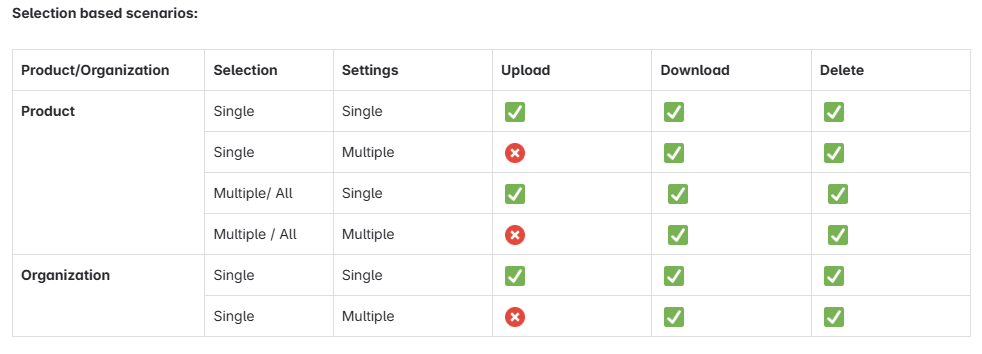
* Actions can be performed on PRC as per the below table:
Tick means action can be performed, Cross means action can not be performed
Upload, Download and Delete settings on new UI
## Pre Run from PageHub
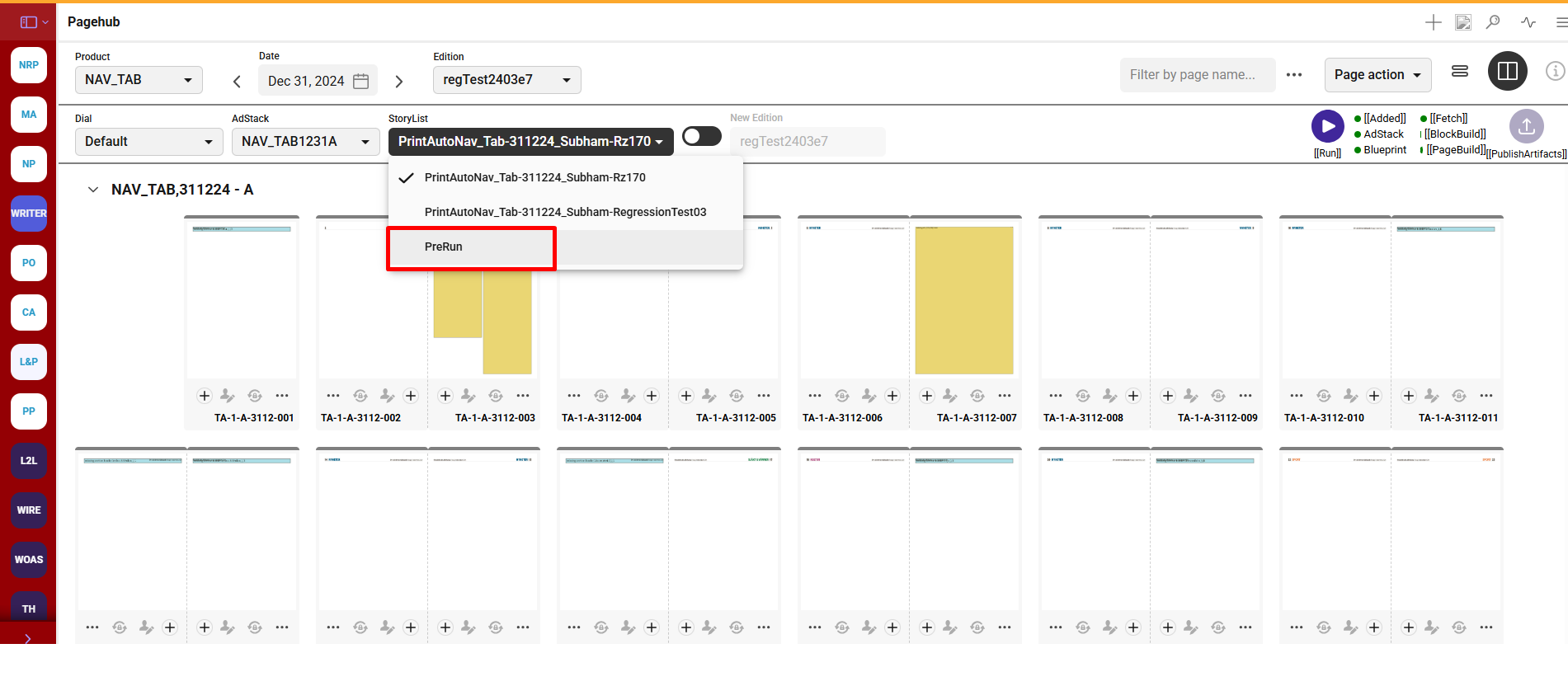
A blank story "PreRun" will always pe present in story list once user select any product and date , it will allow user to create pages on pagehub before even have an actual story list is created.
Points to remember
* Pre-run story list will always be present in story list once user select any product and date.
* Dial and Adstack will be displayed as usual after selecting product, date and edition.
* Once all the required fields are set to trigger run, user can execute run with story list selected as “PreRun”.
* On successful run, pages gets created without any articles and only ads gets placed on pages as per the Adstack.
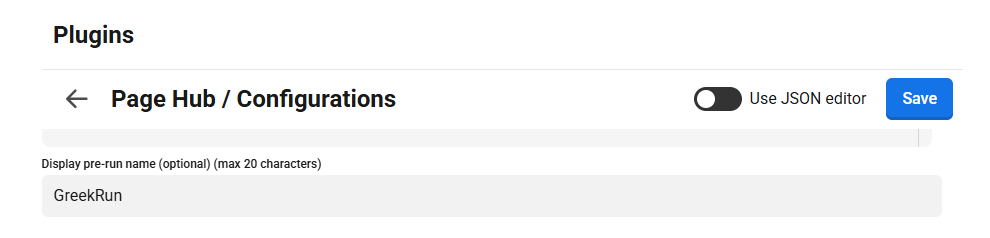
* Page hub configuration allows user to set display name for “PreRun” storylist by setting a key in the configuration. “PreRun” will be displayed by default and if display name is added in the configuration then same name will be displayed in the storylist instead of prerun.
PreRun in Storylist
Display PreRun name in configuration
## PageHub Run Details
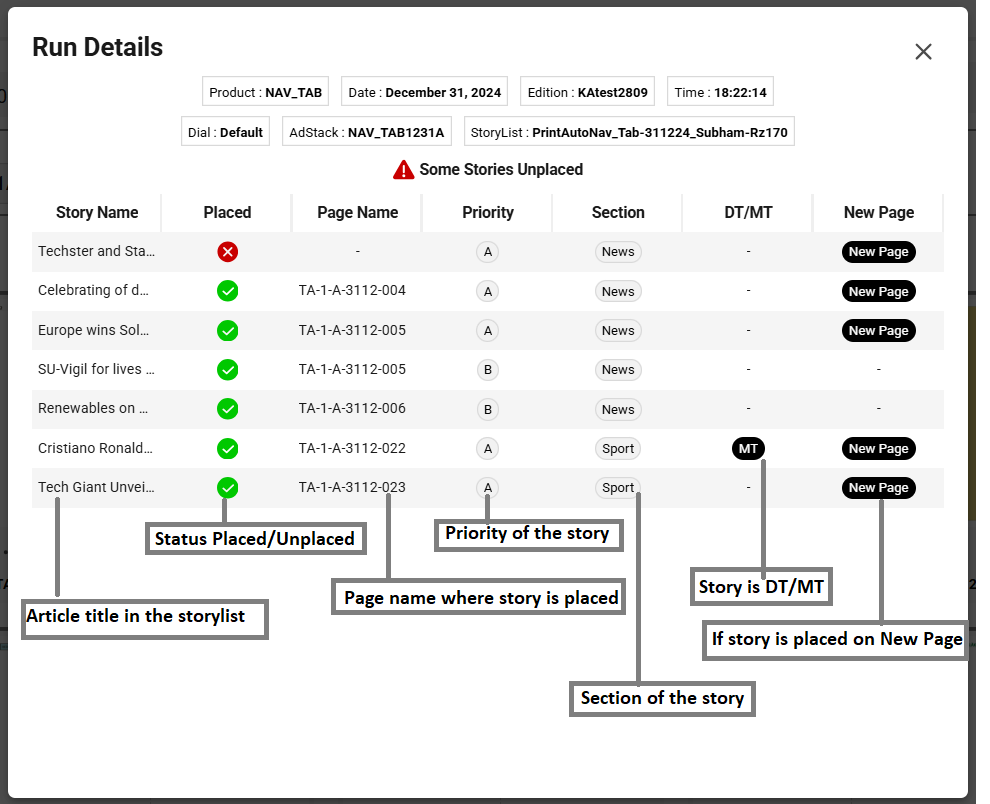
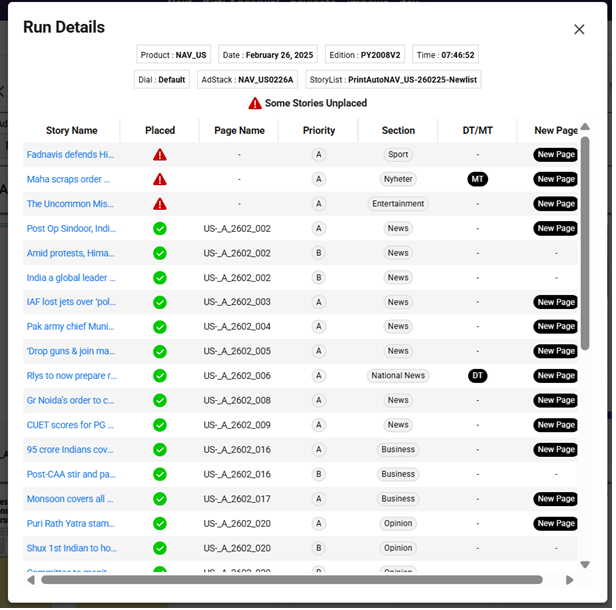
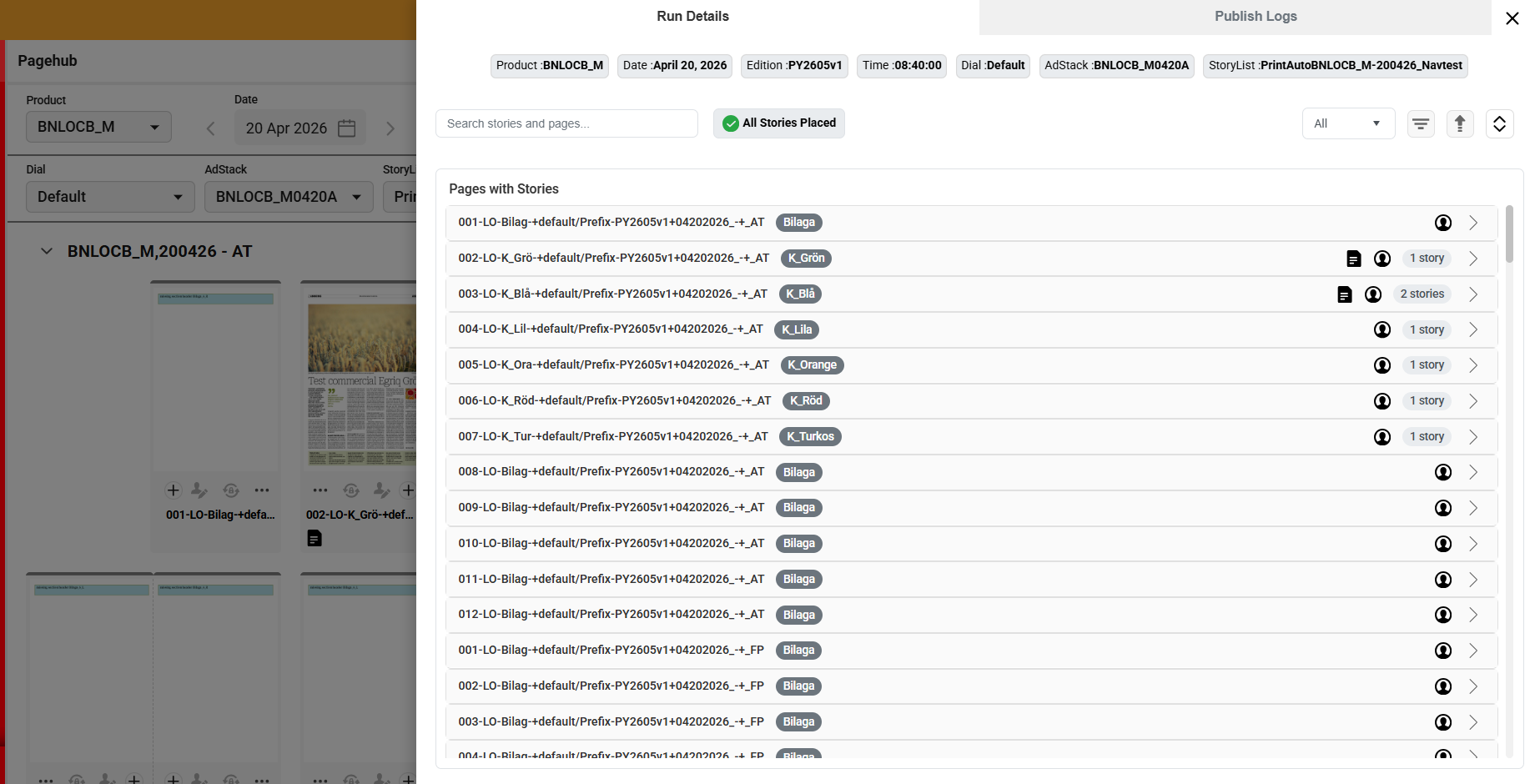
Run Details in Pagehub provides a concise summary of the executed run. This enhancement enables user to quickly view the placement status of stories. This determines whether any story included in a storylist is placed on a page after execution. Additionally, the run details will offer key article details at a glance—such as whether the article is DT or MT, if it’s a new page, its priority level, and more.
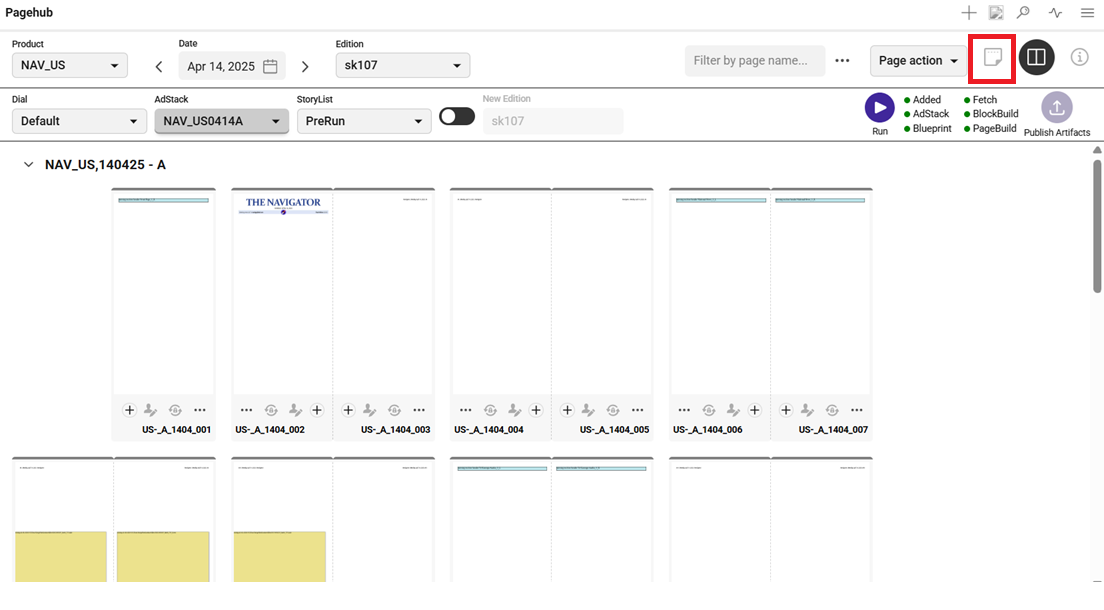
User can access Run Details once run is executed successfully by clicking this button on the pagehhub. 
Run details will be presented in a pop up, highlighting following details:
1. Product, Date, Edition, Disal, Adstack, Storylist - These details will be same as selected in the pagehub for run.
2. Time: Represents run initiated time.
3. Story Name
4. Placed
5. PageName
6. Priority
7. Section
8. DT/MT
9. New Page
10. Overall status of the Run
* "All stories placed" - when all articles in the selected storylist gets placed in run
* "Some stories unplaced" - when some articles left unplaced from the selected storylist in run
* "No Data found" - when the run deatils is not available to display in run details
{% hint style="info" %}
**Point to consider:** User needs to do full rerun again after upgrading Pagehub to 4.5.0 version to view run details in. Run Details will not show any data for pre-existing runs of before upgrade and simply show “No data found” when user click on Run Detals button.
{% endhint %}
## Publish artifacts for failed run
Publish artifacts button is now enabled for failed executed runs which allows user to publish pages if they are available from previous run even if the rerun gets failed.
### Runlist UI enhancements
In Pagehub version 4.6.0, enhancements were made to the Runlist feature to improve its usability and functionality.
* Warning icon now shown for unplaced articles
* Run List icon replaced with “notes-paper” icon.
* Story name is now clickable link to open the article in Writer.
* Story details are now displayed in order based on page number.
The Runlist button remains disabled after a successful run using the 'Prerun' story list, as there are no actual stories to place. Consequently, the Runlist has no content to display.
Disabled runlist button for "Prerun" story list
## Ad File update notification
A new feature introduced in Pagehub version 4.6.0 allows users to detect Ad file updates within an Adstack. If an Ad file has been modified from the backend in the same Adstack, a notification is triggered when the user attempts to publish artifacts for that Adstack in the executed run from Pagehub.
{% hint style="info" %}
**Prerequisites for using the Ad file Update notification feature**
* Ensure the prod config.json includes "adstackExport":"true" to enable ad updates feature on the Publisher end.
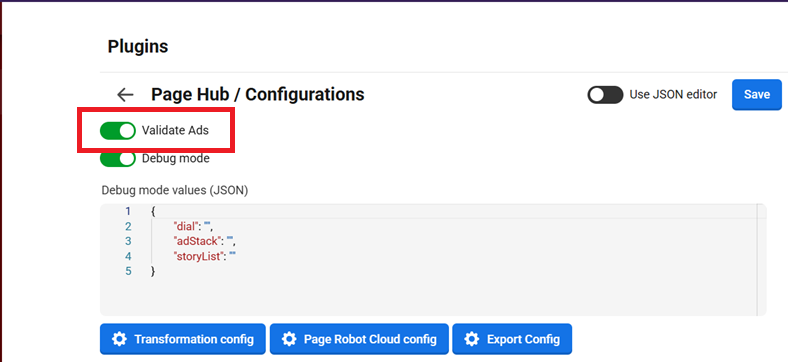
* Make sure "Validate ads" toggle switch is set to ON in the PageHub configuration.
* A policy must be configured for the s3 Adsbucket to enable and support ad update functionality.
{% endhint %}
This feature is configuration driven using the **"Validate Ads"** toggle button in Page hub configuration.
* When the toggle is turned ON, the system performs an Ad file update comparison check. If any updates are detected, the user is notified during the artifact publishing process.
* When the toggle is turned OFF, the system does not perform any Ad file update comparison check.
* By default, this toggle remains OFF.
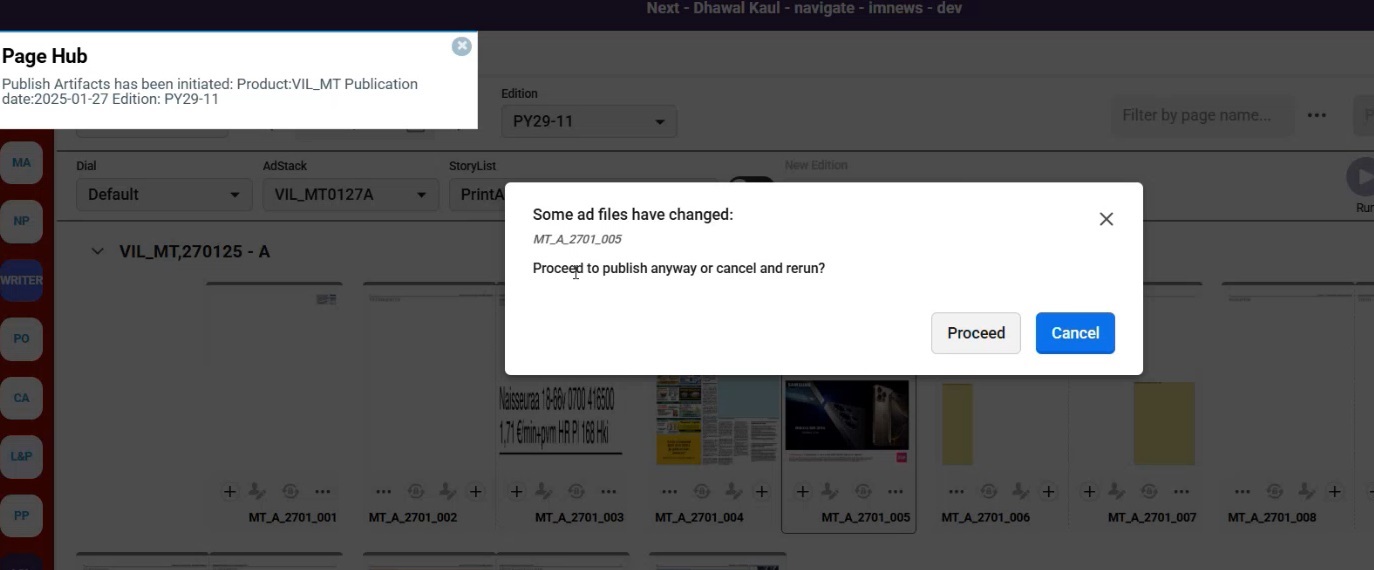
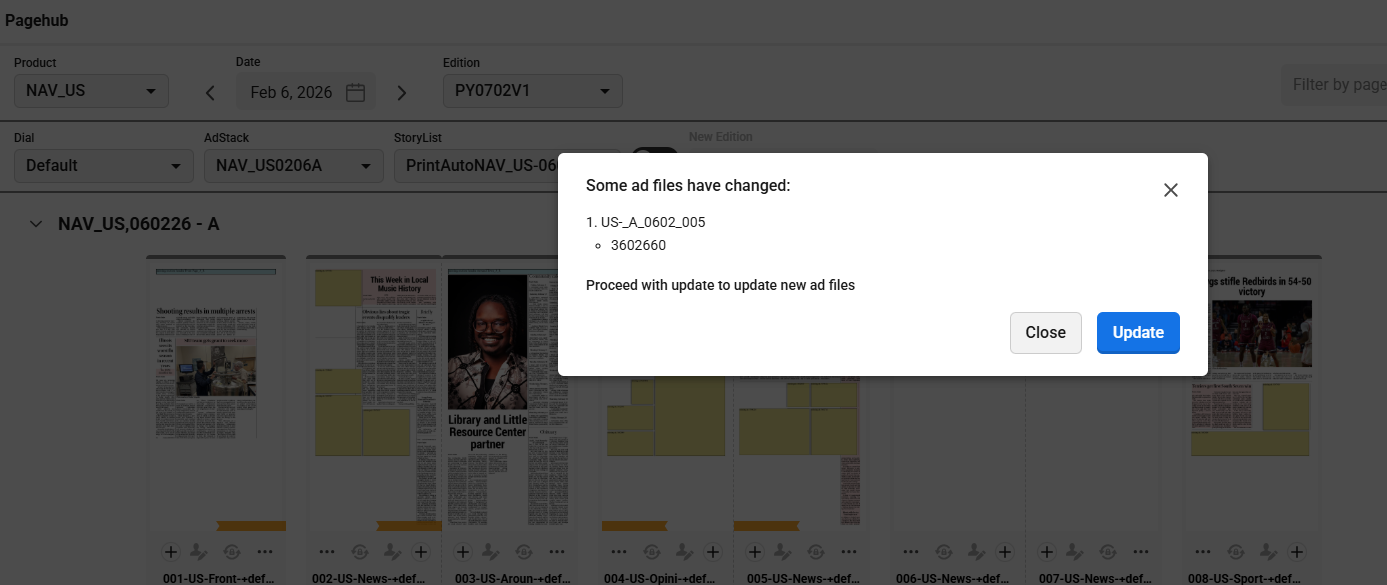
Ad file Update notification pop up appears on Publish artifacts after selecting pages from the run.
Pop up shows the selected page where Ad file update is detected, It allows user to select any one option to continue.
**Proceed**: If user clicks on 'Proceed' button, the popup will close, and the artifacts will be published using the old Ad file on the selected page.
**Cancel**: If user selects the 'Cancel' button, the popup simply closes. To place the updated Ad files on the pages, the user will need to rerun the edition.
**Points to remember:**
* System works for Publish artifacts as usual if there is no change in Ad files.
* The file name of the updated Ad. file should remain same as the original file name to do Adfile update comparison check.
* This feature is only applicable for customers using an S3 bucket and does not apply to those with ads stored on a mapped drive.
* A policy must be configured for the `s3Adsbucket` to enable and support ad update functionality.
* For pre-existing runs before upgrade, Ad update notification would not trigger, ensure to rerun after upgrading to Page hub to 4.6.0 version.
### Run Details – Placement status of stories in Page-wise view
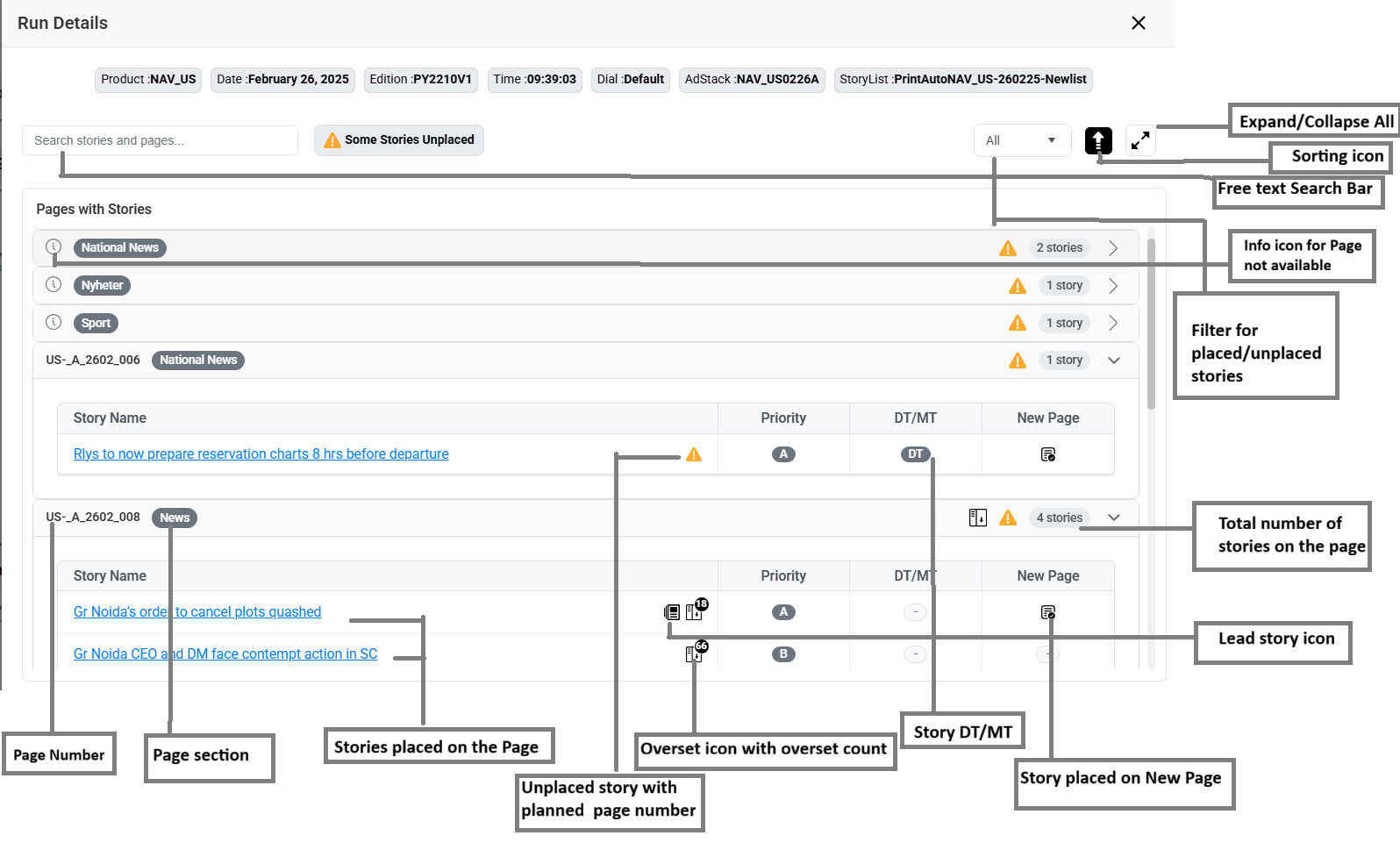
In PageHub version 4.7.0, Run Details are displayed in an enhanced page-wise UI, providing additional insights about stories such as stories placed with overset, marked as lead stories, or stories left unplaced on the planned pages.
Run Details new UI
* Run Details now open as a side slider instead of a pop-up window.
* Placed and unplaced stories are organized under their respective page numbers using accordion-style sections.
* **Lead Story Icon** – An icon has been added to indicate the lead story on each page.
* **Overset Icon** – Indicates stories placed with overset, shown both at the story level and the corresponding page level.
* **Overset Count** – Displays the number of overset lines in a placed story, indicated by an overset icon.
* **Expand/Collapse Icon** – Enables users to expand all pages to view the status of the stories under it. When collapsed, it hides the story list and display only the pages.
* **Sorting Icon** – Allows sorting of stories by 'Unplaced' or 'Page Number'. Clicking it moves all unplaced stories to the top of the list. By default, stories are sorted by page number
* **Filter** – A dropdown filter has been added to view all stories, only placed stories, or only unplaced stories.
* **Search bar**– A free-text search bar has been added to help users quickly find any story or page or section.
* **Information Icon** – Displays unplaced stories which could not be placed as more pages were not available in the section to place the story.
### Image toning from Page hub
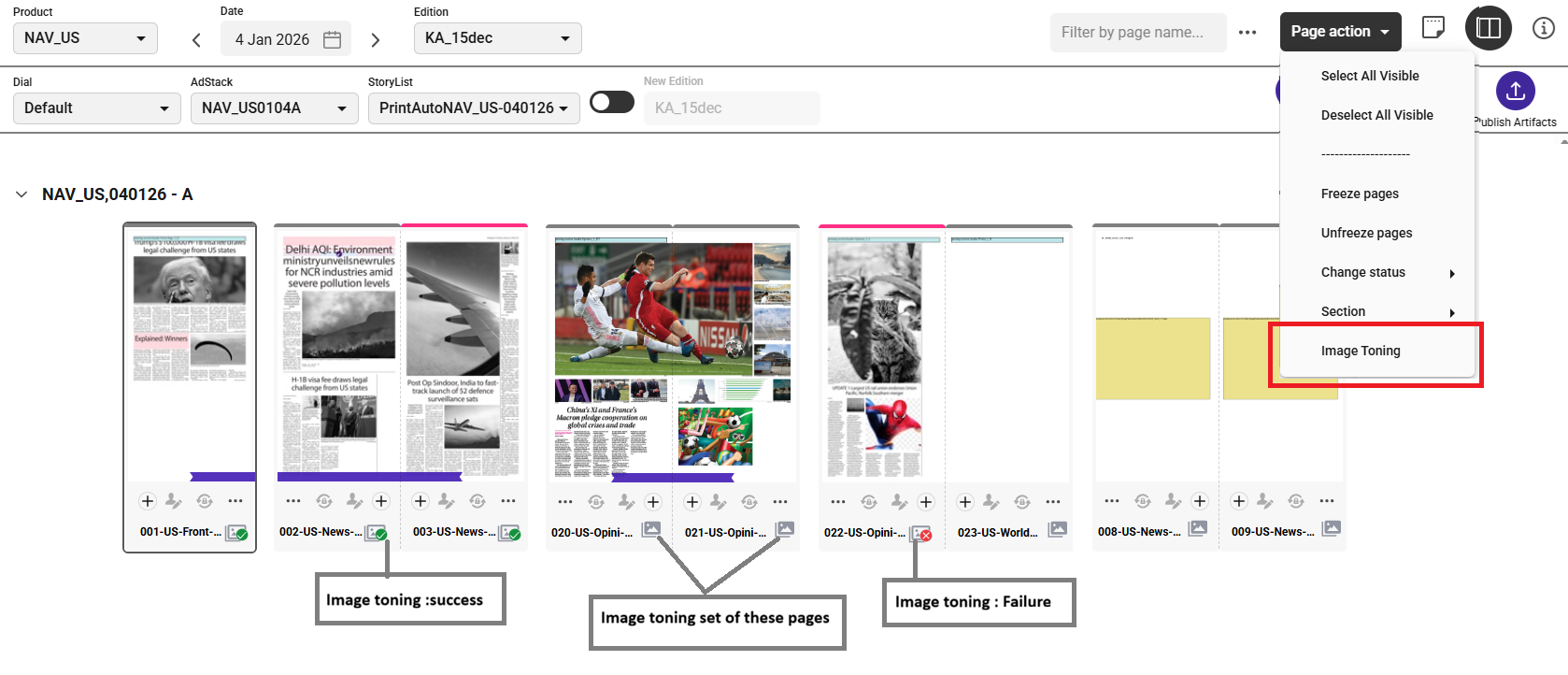
PageHub introduces an advanced Image toning feature currently applicable using Intellitune service. This functionality enables precise post-processing of images to CMYK or Monochrome profiles set for pages that have been successfully built after a PageHub run.
With Image Toning, users can seamlessly convert page images to the desired CMYK or Monochromee profiles based on the [configuration ](/page-hub/admin/settings/configuration/page-hub-plugin/image-toning-config.md)defined in PageHub settings.
Steps to apply the valid Image toning setting from config
1. **Product check,** If specific product is available in config, product specific settings would be applied, else default setting will be applied.
2. **totalpages** edition check, when user select an edition in page hub, depending on the total pages of an edition , config will be applied. If no config is available for that totalpages, Image processing will not be applicable for the edition.
3. **days check**, as per the edition selected for image toning, if that day config is available, defined CMYK/Monochrome settings will be applied, If no config is available for that day, Image processing will not be applicable for the edition.
4. **Page level check,** as per the pages selected in an edition for image toning, if that page is added in any profile of CMYK/Monochrome, Image processing will be done on those pages, if pages are not added in then Image processing will not be applicable for those pages.
5. Once all the settings criteria meet, Images on selected pages get converted in to desired CMYK/Monochrome.
**Visual cue on pages for Image toning**
* Icon display on pages applicable for Image toning.
* Icon display for Image toning process Success/Failure
* User can access **"Image Toning"** option from Page action menu and three dots at page level
* Pages will be frozen while the Image toning is in progress, however user can perform any other operations on other pages/editions.
## Ad files update notification without rerun
The enhanced Ad Files Update feature introduced in Pagehub 4.9.0 enables users to preview all available ad updates within an Adstack before publishing. If any ad file in the same Adstack has been modified on the backend, Pagehub now triggers a notification when users check for ad updates—whether for the entire edition at once or for selected pages—ensuring they are aware of changes and update it before proceeding with export artifacts.
{% hint style="info" %}
**Prerequisites for using the Ad file Update notification feature**
* Ensure the prod config.json includes "adstackExport":"true" to enable ad updates feature on the Publisher end.
* Make sure "Validate ads" toggle switch is set to ON in the PageHub configuration.
* A policy must be configured for the s3 Adsbucket to enable and support ad update functionality.
* Ad files must be uploaded at the exact location defined in metadata(**Base Path + Relative Path** structure)
{% endhint %}
#### **Ad File Update notification workflow on Ad updates option**
When a user selects one or more pages—either individually or using **Select All** within an edition—and clicks **Ad Updates** option from the page action menu, a notification popup appears indicating that updated ad files have been detected.
The popup displays:
* The list of selected pages where an ad file update is available
* The corresponding ad file names
* Action options for the user to proceed
**Update:** When the user selects the Update option, the popup closes and the system immediately begins processing the Ad Files Update for all selected pages. During this process, updated ad files are applied to the pages where changes were detected. Once the update completes, the system displays a status message indicating whether the new ad files were successfully placed, ensuring users receive clear feedback before moving forward with publishing.
**Close**: When user selects the 'Close' button, the popup simply closes.
**Visual cue on pages for Ad updates**
* Icon display for Ad Updates process Success/Failure
* User can access **"Ad Updates"** option from Page action menu and three dots at page level
* Pages will be frozen while the **Ad update** is in progress, however user can perform any other operations on other pages/editions.
Ad file update Notification on checking Ad updates
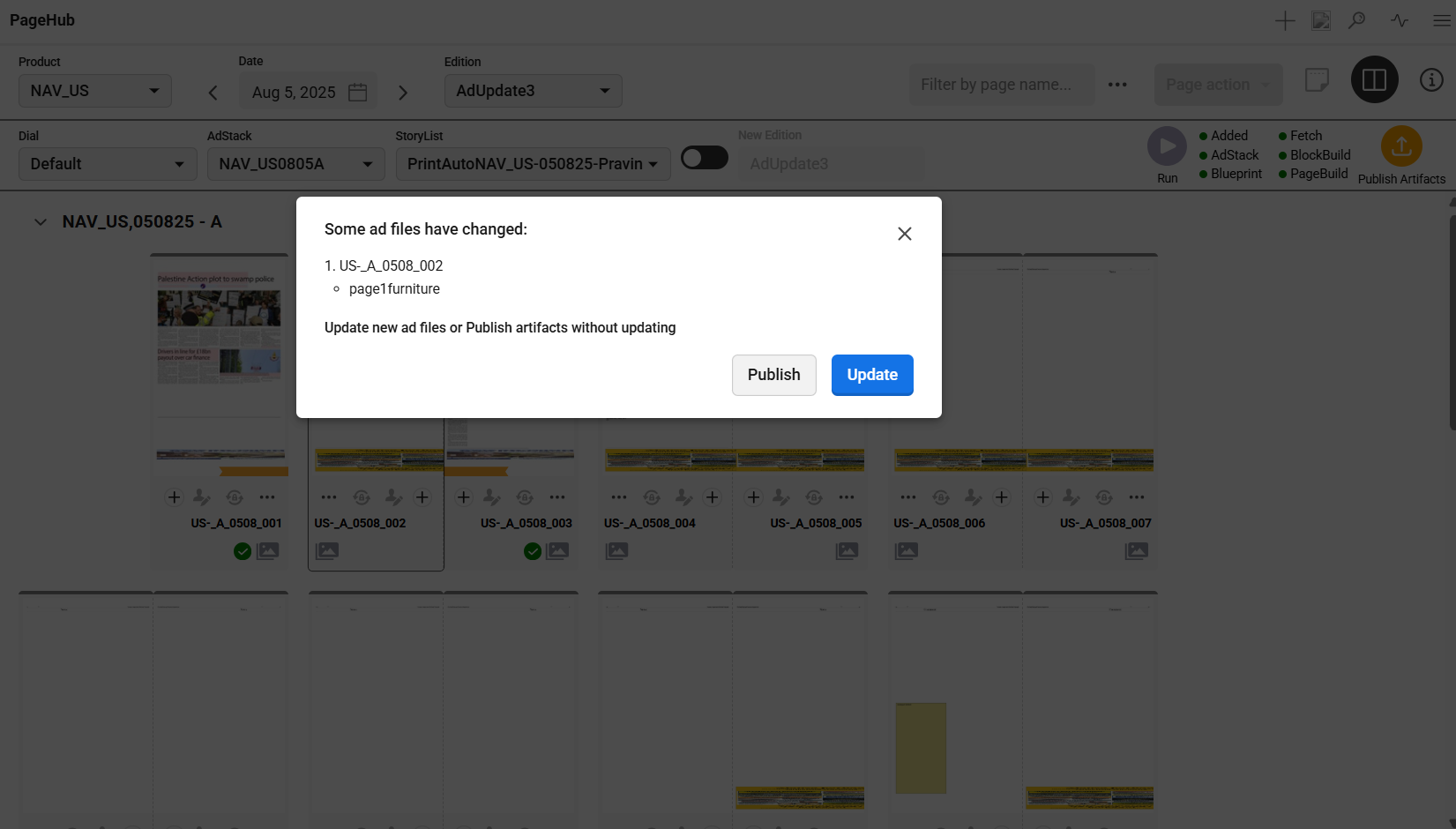
#### **Ad File Update notification workflow on Publish Artifacts**
When a user selects one or more pages—either individually or using **Select All** within an edition—and clicks publish artifacts, a notification popup appears indicating that updated ad files have been detected.
The popup displays:
* The list of selected pages where an ad file update is available
* The corresponding ad file names
* Action options for the user to proceed
**Update:** When the user selects the Update option, the system triggers processing the Ad files update for all selected pages. New Ad files will be placed on the pages where changes were detected.
Once the ad files are successfully updated on the selected pages, publishing the artifacts will proceed without triggering any further Ad File update notifications.
**Publish**: If user clicks on 'Publish' button, the popup will close, and the artifacts will be published using the old Ad file on the selected page.
Ad file update Notification on publish artifacts
**Notifications for Ad Updates:**
* **"No New Ads Available"**: When a user selects any page and checks for Ad Updates, the system will display a “No New Ads Available” notification if no ad file changes are detected for the selected page(s).
* **"No Updates available: Ad file is missing or file name has been changed":** When a user selects any page and checks for Ad Updates/Publish artifact, the system will display this notification if ad file has been deleted or Ad file name has been changed for that page.
* **"Adsbucket not available":** When a user selects any page and checks for Ad Updates, the system will display this notification if, **adsbucket** is not available from publisher for that product.
**Points to remember:**
* System works for Publish artifacts as usual if there is no change in Ad files.
* The file name of the updated Ad. file should remain same as the original file name to do Adfile update comparison check.
* This feature is only applicable for customers using an S3 bucket and does not apply to those with ads stored on a mapped drive.
* A policy must be configured for the `s3Adsbucket` to enable and support ad update functionality.
## Run details for all pages within an edition
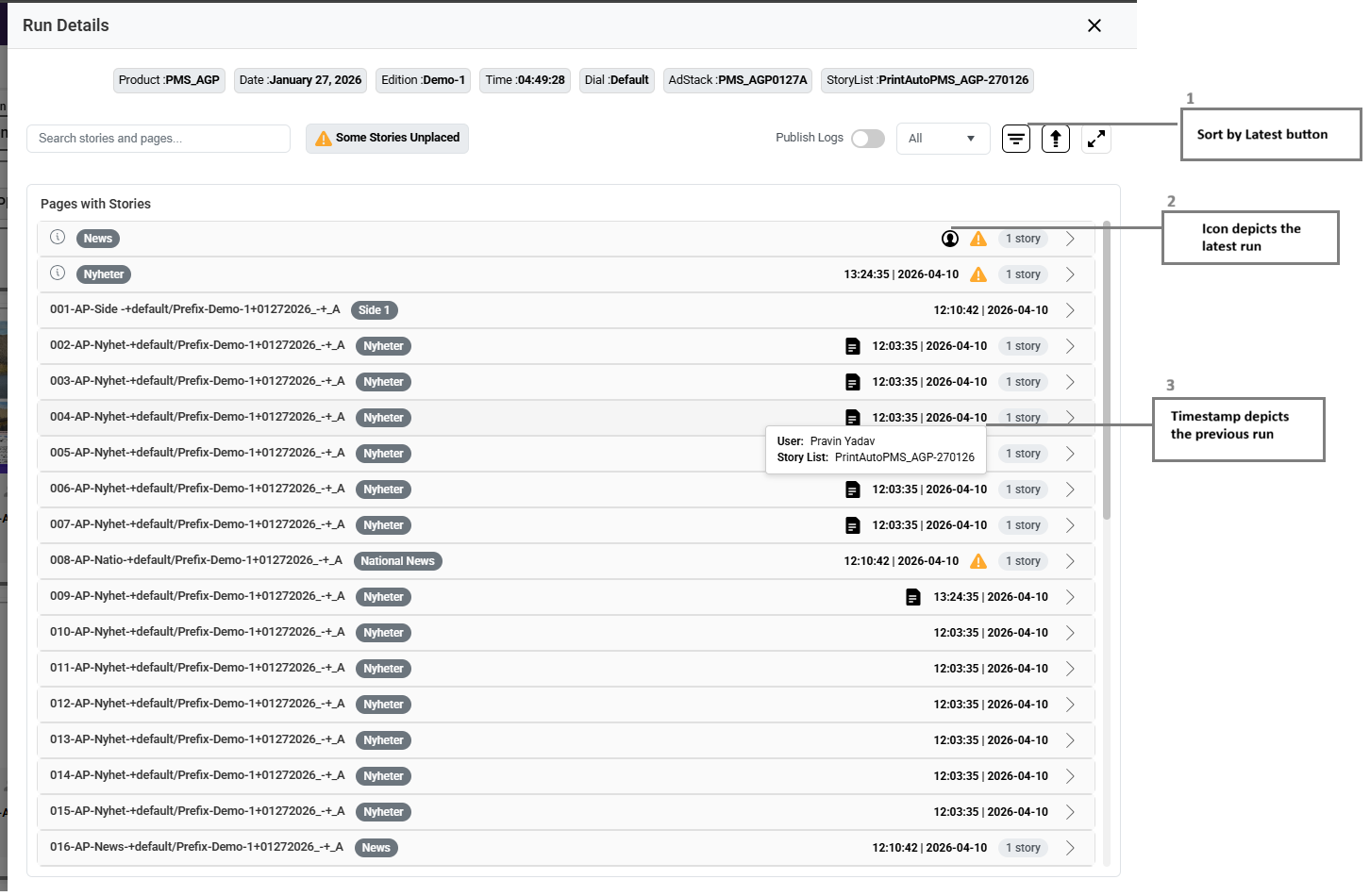
The enhanced Run Details introduced in Pagehub 4.10.0 allows users to view run information for all pages within an edition—including both the latest run pages and previous runs—in a single Run Details window. Latest and previous runs are distinguished using the user icon and timestamp indicators.
**Additional info display in Run details for each page.**
* **Timestamp :** When the page was executed
* **User:** Who executed the page
* **Story List:** If pages were executed with different story lists in the same edition
1. **Sort by Latest:** A new icon in the run details view allows users to sort pages by the most recent run. When selected, pages from the latest run are moved to the top of the list. By default, pages remain sorted by page number.
2. **User icon(Latest run):** This icon indicates that a page is part of the latest run. It appears only on pages included in the most recent run. On hover, it displays the user and timestamp—showing who executed the page and when with the latest story list.
3. **Timestamp:** This indicator appears on pages that are not part of the latest run but were included in a previous run. It shows when the page was last executed. On hover, it displays the user and associated story list—indicating who executed the page and with which story list.
## Selectable destinations for artifact publishing
Pagehub v4.10.0 introduces a new feature that allows users to choose the destinations for exporting artifacts. Based on the [destination configuration](/page-hub/admin/settings/configuration/page-hub-plugin/export-config.md#select-destination-to-publish-configuration) defined in the export settings, the system prompts users to select one or more destinations during the publishing process.
{% hint style="info" %}
**Prerequisites for using the select destination feature**
* Ensure Export config have valid configuration for export
* Make sure "Select destination" toggle switch is set to ON in the PageHub configuration.
{% endhint %}
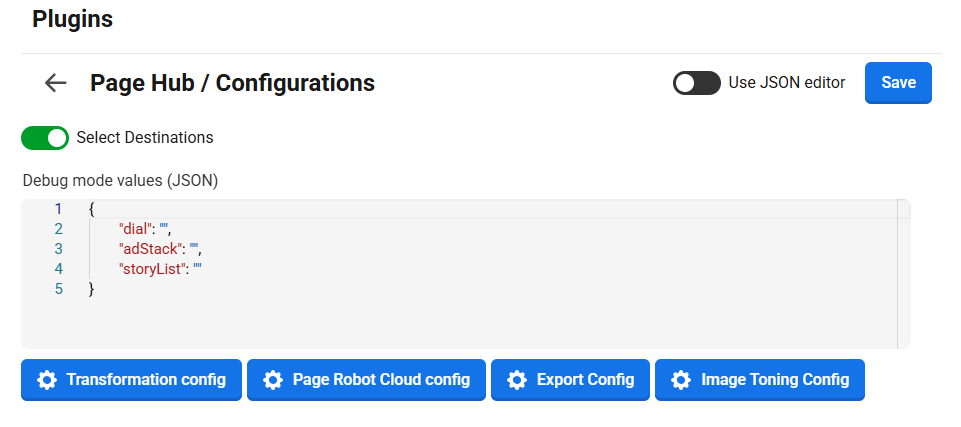
This feature is configuration driven using the **"Select Destinations"** toggle button in Page hub configuration.
* When the toggle is turned ON, the system prompts the user to select destinations from the available options before publishing artifacts.
* When the toggle is turned OFF, the system does not prompt the user to select destinations and publish artifacts on all destination as per export config.
* By default, this toggle remains OFF.
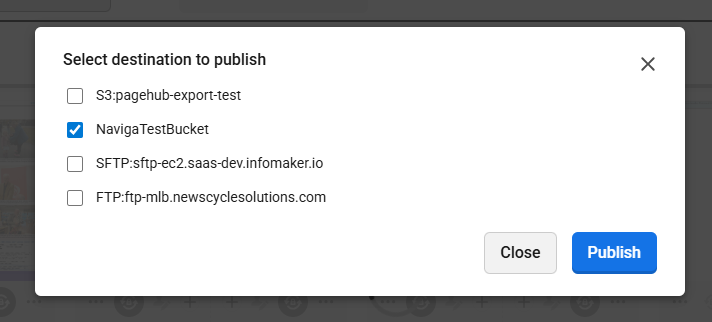
Once the select destination configuration is set in Export config then selecting publish artifact prompts the user by showing popup to select the destinations before publishing artifacts.
Pop up should display following
* All destinations defined in Export config (S3/FTP/SFTP)
* Destination name if Label is added in config, else hostname/bucket name
* Publish and Close
**Publish:** When destination(s) are selected in the pop‑up and **Publish** is clicked, the artifacts are published exclusively to the selected destinations.
Select destinations to publish pop up
## View publish logs for export activity
As part of Pagehub v4.10.0, a new feature enables users to view detailed logs of export activity, including publishing individual pages or entire editions across different formats and destinations.
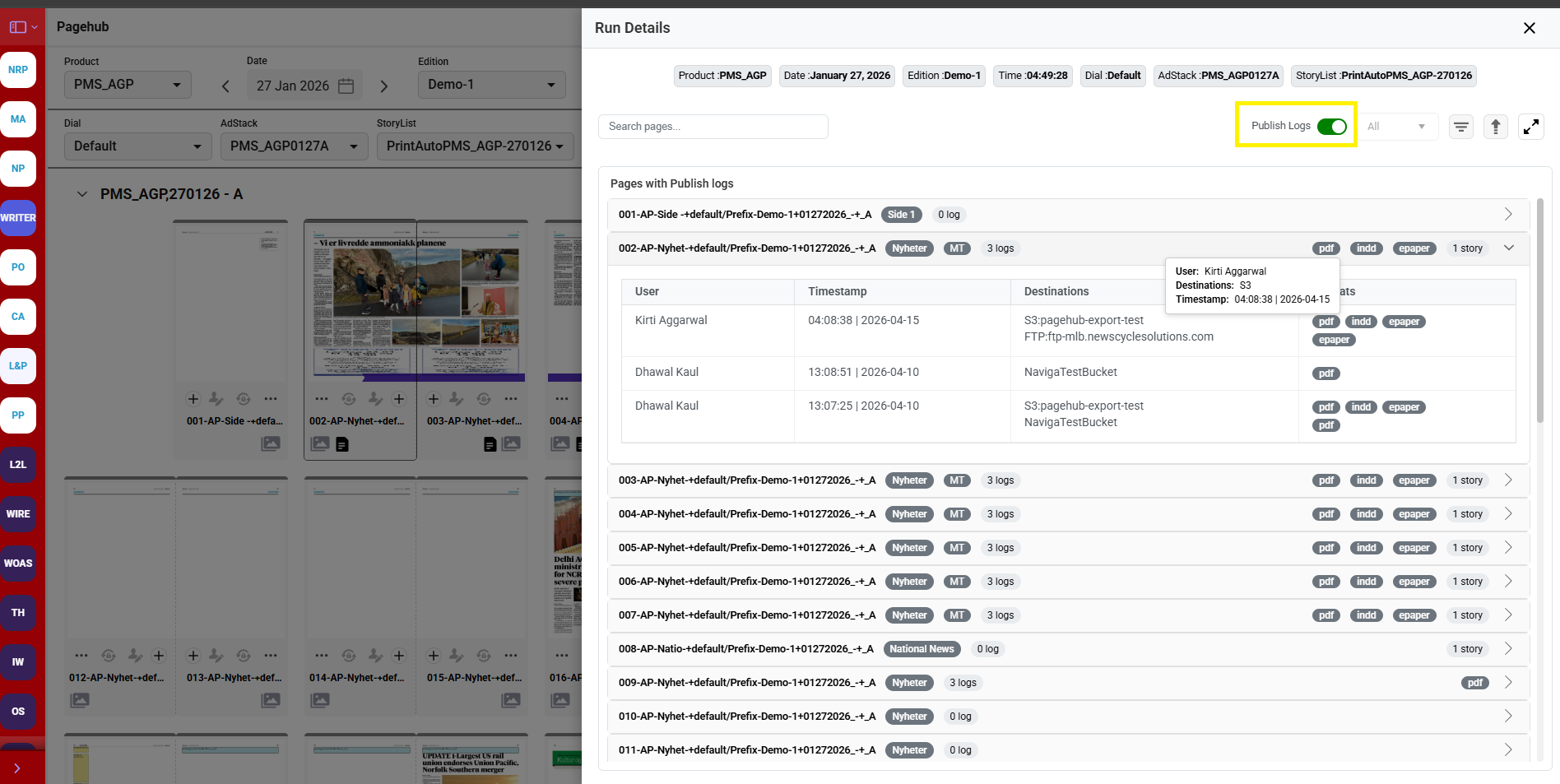
**Log Access Points:** The latest publish details are available via a Publish Log icon at the page preview level and in Run Details (page name bar). The icon appears for pages published after the latest run, with hover details showing recent export information. Failures are indicated by a red icon.
**Run Details – Publish Logs View:** A new **“Publish Logs”** toggle (default: OFF) is added to the Run Details screen. When enabled, it displays all (latest and previous) publish logs organized by page number in accordion-style sections.
**Log Details:** On expanding the Page accordion, logs are shown in a table with User, Timestamp, Destinations, and Formats—indicating who exported what, where, and when. Failed exports are highlighted with a red format indicator, with hover details showing the failure reason.
{% embed url="" %}
### Run details - publish logs tab view
As part of Pagehub v4.10.1, updates have been made to the Run Details UI:
* The expand/collapse icon has been updated.
* The toggle for Publish Logs has been removed. Run Details and Publish Logs are now displayed as separate tabs.
* The **Run Details** tab displays the run details of the edition.
* The **Publish Logs** tab displays the publish log artifacts of the edition.
### Quick Edit
**Quick Edit Permission Control**
When the Quick Edit plugin is installed and configured, the required permission `pagehub:quickedit` must be assigned at the organization OR group level.
* Users with the `pagehub:quickedit` permission will see the **"Check Out in Quick Edit"** option in the Page Actions menu within the Page Hub preview.
* Users without the `pagehub:quickedit` permission will not see the **"Check Out in Quick Edit"** option.
**Editing Text with Quick Edit**
From the Page Hub page preview, users can open the page action menu and select **Page > "Check Out with Quick Edit"**. This launches the Quick Edit editor, enabling users to make text corrections directly within the rendered page(.indd) and save changes instantly.
**Editing Headline of the article**