Functionalities
The Page Hub provides the user with the following functionalities:
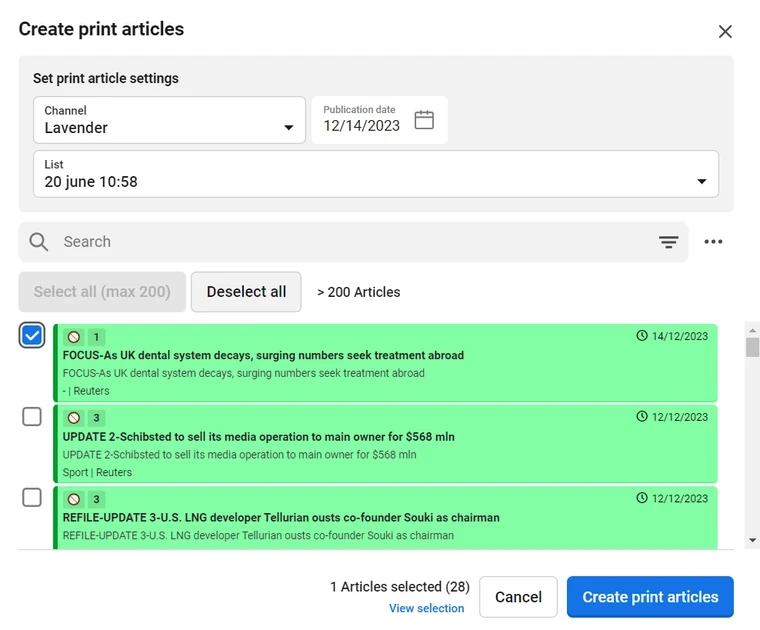
Create print articles/copies: This feature allows the user to add articles to lists to prepare for print copies of the selected articles in the list. This can be accessed using this button
A user can select the following:
a. Channel (target channel for the copies)
b. Publication date (for the target print articles) c. List (to attach print copies to, the list needs to be created before copying) d. Search articles to be copied and whos print copies will be added to the list, selected above e. Create print copies of the selected articles and add to the selected list
Create Run: A run can be created by a user to overwrite an existing edition or to create a new edition.
a. Select Product - This is the functionality to select a product, which exists in the Publisher software, from the drop down list. The results can be narrowed down by filtering through text search.
b. Select Date - The user will then select the date for which the Run needs to be executed.
c. Select Edition - An existing edition needs to be selected if the user wants to overwrite it or else the user will toggle the New Edition toggle button to enter the new edition name
d. Once the Product and Date are selected the corresponding Dial, AdStack and StoryList values available in the Publisher software are available in the dropdown list
e. The user then selects the Dial, AdStack and StoryList and then the Run button is enabled.
f. The user can then click the Run button to start a run. While a Run is in progress the user can see the Run go through important Publisher stages which are:
i. Added
ii. Fetch
iii. AdStack
iv. Block Build
v. Laydown
vi. Page Build Each stage have a status color of grey, orange, green and red. They mean the following: Grey - Stage not initiated Orange - Stage in progress Green - Stage completed successfully Red- Stage encountered error
Along with the statuses the user will also get notification in the Page Hub application and slack notifications can also be configured to send each run details over a pre determined slack channel.
Publish Artifacts: Once a Run is successfully completed the Publish Artifacts button is then enabled which allows the user to to publish the successfully created Run artifacts (PDF and INDD files) to a predefined location which is configured in the Publisher software side. Note: From Page Hub Version 4.2.0 the Publish artifacts (export) settings are configurable from Page Hub settings under Export tab. 1. All editions that were run before Page Hub Version 4.2.0 if their pages need to be exported again from Page Hub Version 4.2.0 then make sure the run is executed again and file naming conventions are not updated in latest run (should be same as old edition) 2. Export configuration needs to be done before using Publish Artifacts after upgrading, since this the old export functionality is no longer supported.
Page Options: There are options on each page for a user to perform actions, the most important features are:
a. Freeze Page - This will mark the page as frozen which is used to prevent any updates from Publisher in any upcoming Runs.
b. Page - This allows the user to perform three functions:
i. Check out and download - A user can download the page as INDD file and edit the page locally in Adobe InDesign.
ii. Upload and check in - A user can upload a page in INDD format. When checking in a locally edited page, the page automatically gets Frozen.
iii. Reset checkout - A user can reset the checkout that was done on a page.
Last updated