

Preview a Page/Selection
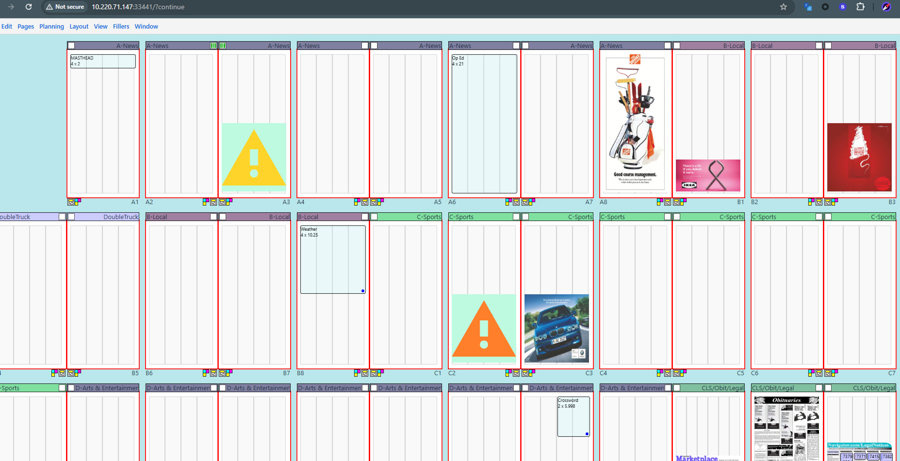
You can preview an ad, a page or multiple pages in the Plan. The Preview Page function changes your view of objects on the page from outlines to lo-res previews of ads, and, if using NCS Content, also stories.
To Preview one or more pages select View -> Preview Page if a single page is selected. Alternatively, user can use Ctrl-Alt-P (Windows) or Ctrl-⌥-P (Mac)
The previews give you a good idea of what is happening on the selected page or pages, but the resolution is low and may be difficult to check small details unless you zoom in.

To revert back to the Ad boxes instead of previews, select View -> Outlines Only or ⌥-Shift-T (on a Mac), or Alt-Shift-T (Windows).
When previewing an ad or a page, you may find a yellow or an orange triangle with an exclamation point instead of an actual ad preview. In that case, the material is missing. A yellow triangle means that there is no material ID assigned at all in Naviga Ad. The orange does have a material ID, but it is missing final creative.
Was this helpful?