> For the complete documentation index, see [llms.txt](https://docs.navigaglobal.com/naviga-propel-end-user/llms.txt). Markdown versions of documentation pages are available by appending `.md` to page URLs; this page is available as [Markdown](https://docs.navigaglobal.com/naviga-propel-end-user/propel-advertiser-user/creating-an-account-and-logging-in.md).
# Creating an Account and Logging In
## Login Screen
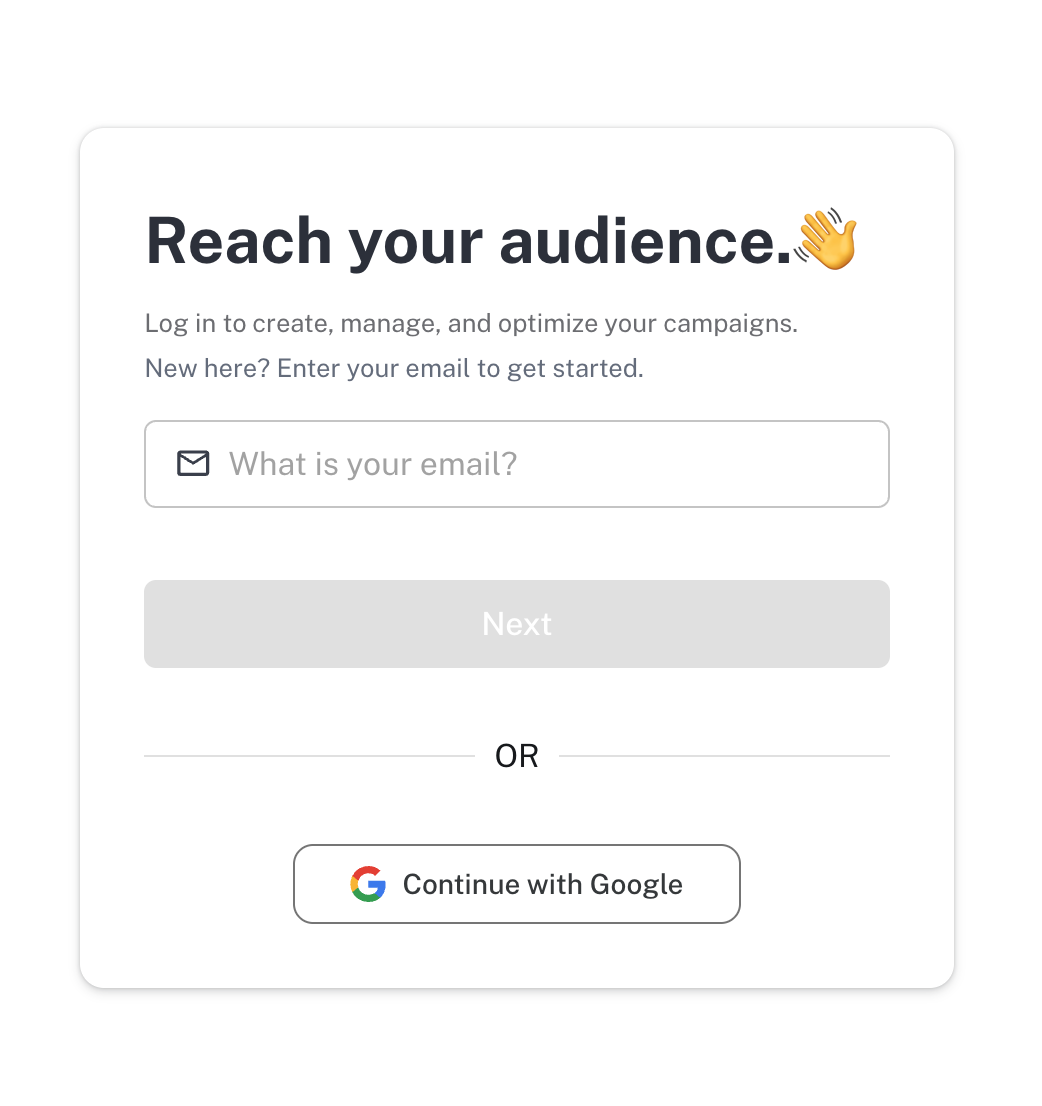
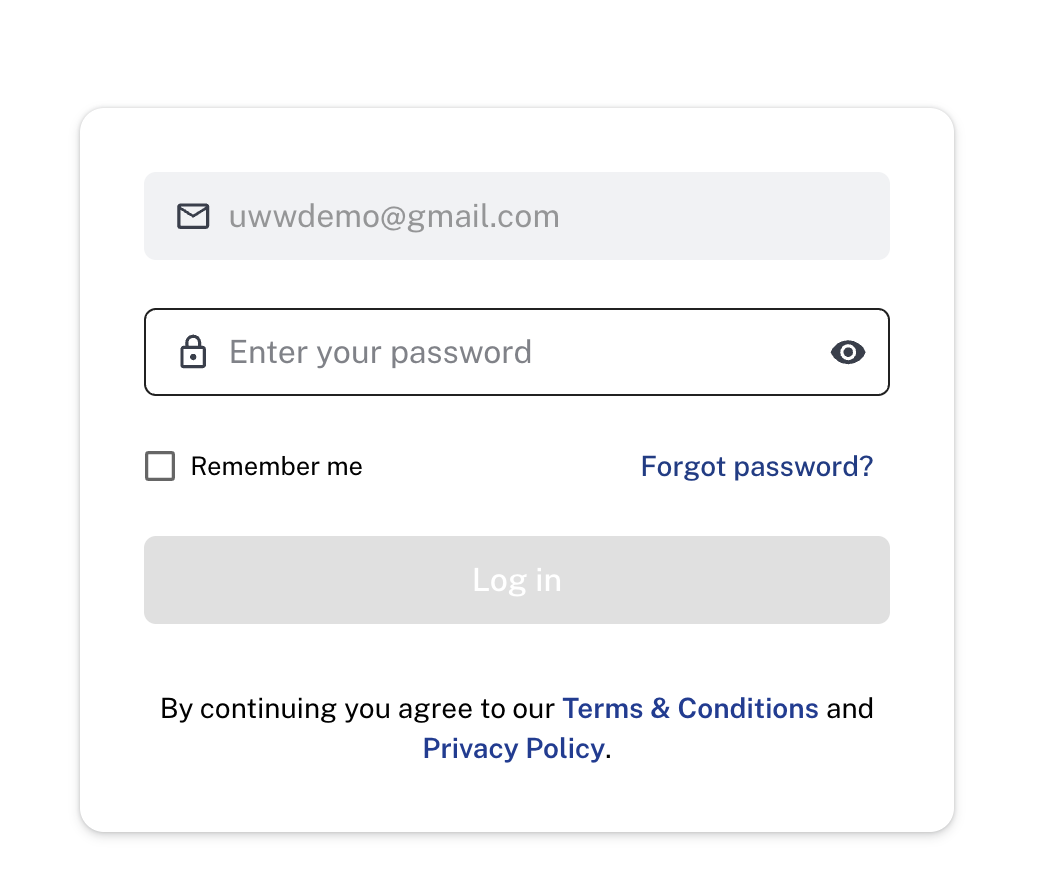
The first screen in the self-service portal will request the user to enter their email address.
For an existing user already doing business with the media company, enter the email address used in previous correspondence so that we may connect your self service user with your existing account.
As an alternate login method, click on "Continue with Google" to use a google login.
If the user is returning to the self service portal having already established their account, the email address used will be recognized and the next screen will request their self-serve password.
## Establish new account Using Email and Password
1. Enter email in the "what is your email" field
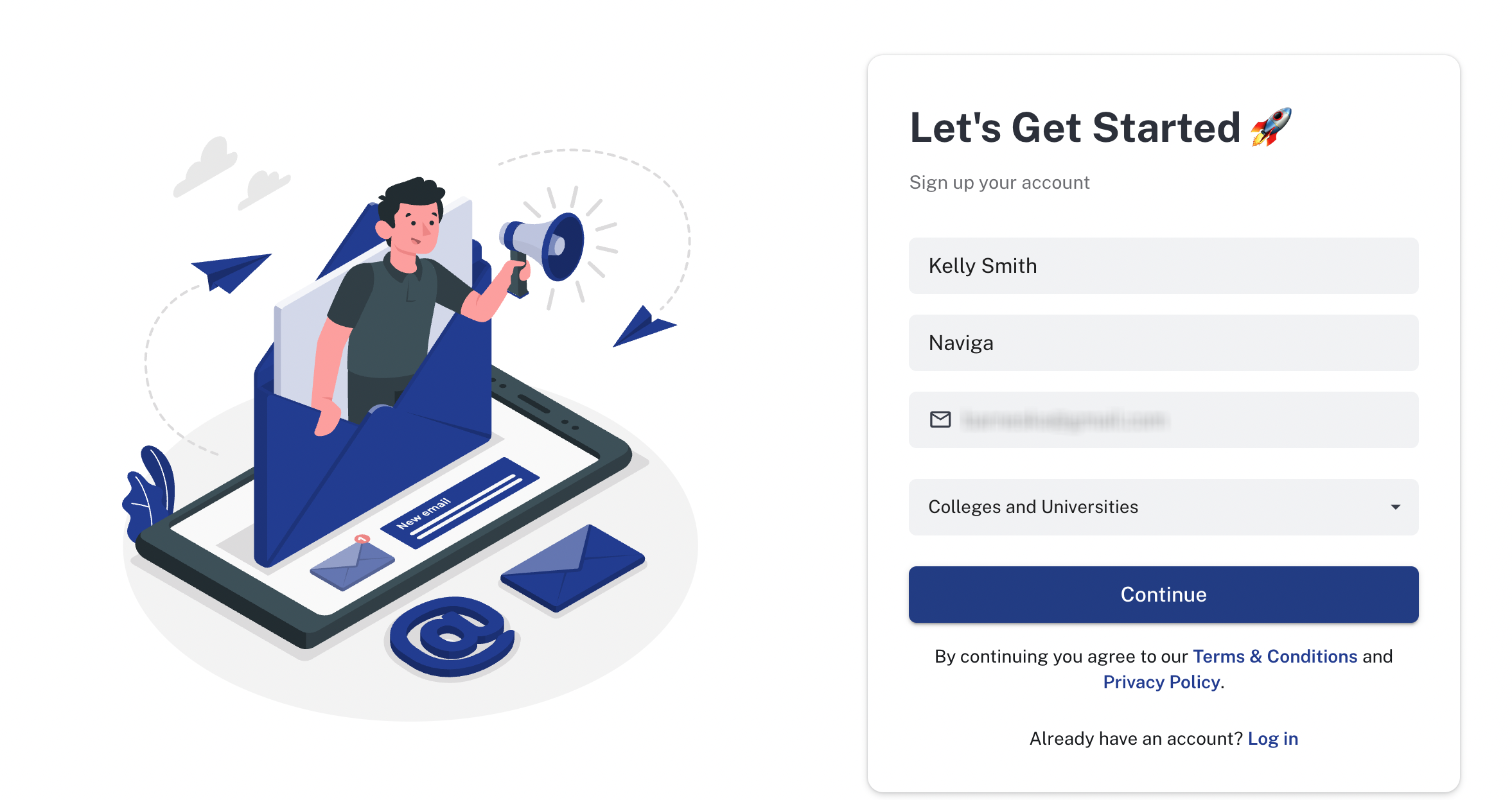
2. User is taken to a screen where they can fill in their name, company name, phone number, set/confirm a password and select an Industry Code. (The media company may limit Industry Codes which are permitted to book through the portal.)\
You may or may not see an option here to select your preferred language, depending on the media company you are booking with. (Currently English and French may be available and can later be changed by selecting your user name after login and then "My Account")\
For an advertiser purchasing directly, enter this account information on the default screen "Direct Advertiser." For an agency, please first select the AGENCY tab at the top, and then fill in that information. See "[**Logging in as an Agency**](/naviga-propel-end-user/propel-agency-user/logging-in-as-an-agency.md)" for full instructions.\

3. Once the user has filled in all the fields, and have agreed to terms and conditions, click continue.
4. A verification email will be sent to the users email address. If it isn't seen right away, please check spam folder and mark as "not spam" and/or make us a trusted sender so that future emails come into your inbox. If the email isn't received after a time, the resend email button will become enabled and the user can receive another verification email.\

5. The email will look like this. Click the Verify Link

6. The user will return to the self-service login screen where they can follow the steps above to login with user and password to enter the system.
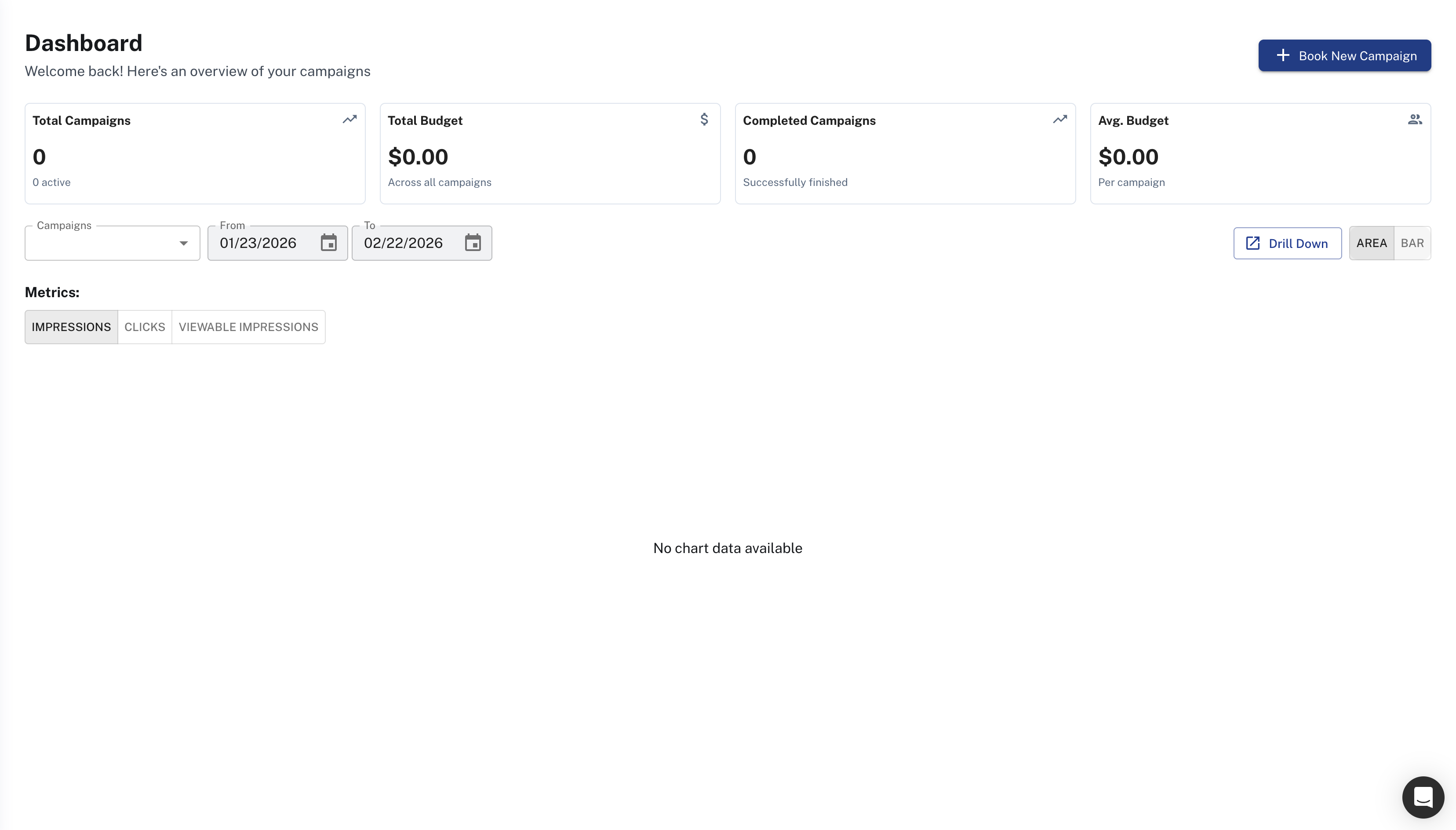
7. User will see dashboard upon login - the landing page will be empty on first login, but upon booking some orders, the information will start filling in. Select + Book New Campaign in the top right to jump right into booking a first order.\
Alternatively, select [**Campaigns**](/naviga-propel-end-user/propel-advertiser-user/campaigns.md) or [**Gallery**](/naviga-propel-end-user/propel-advertiser-user/gallery.md) on the left to continue
## Using Google
1. Click the continue with Google button
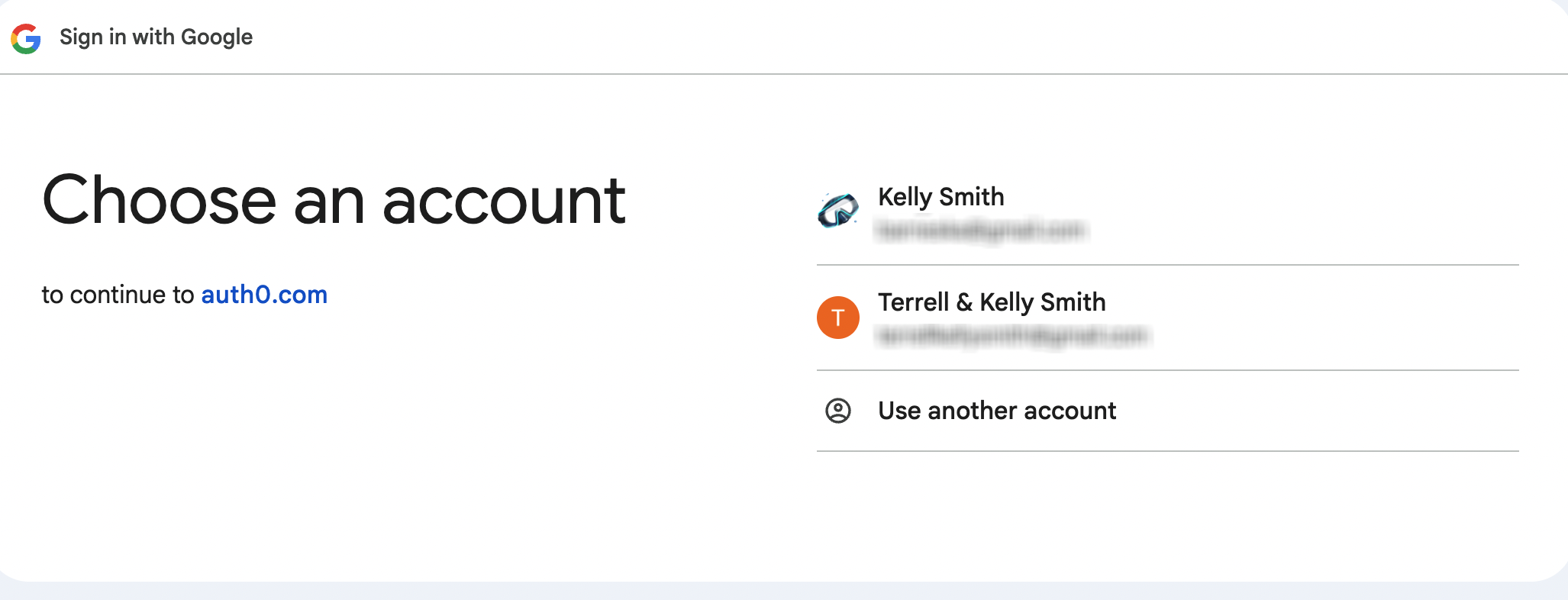
2. The user will be directed to a google login screen. Either enter google credentials, or select desired account if you already are logged into google chrome.
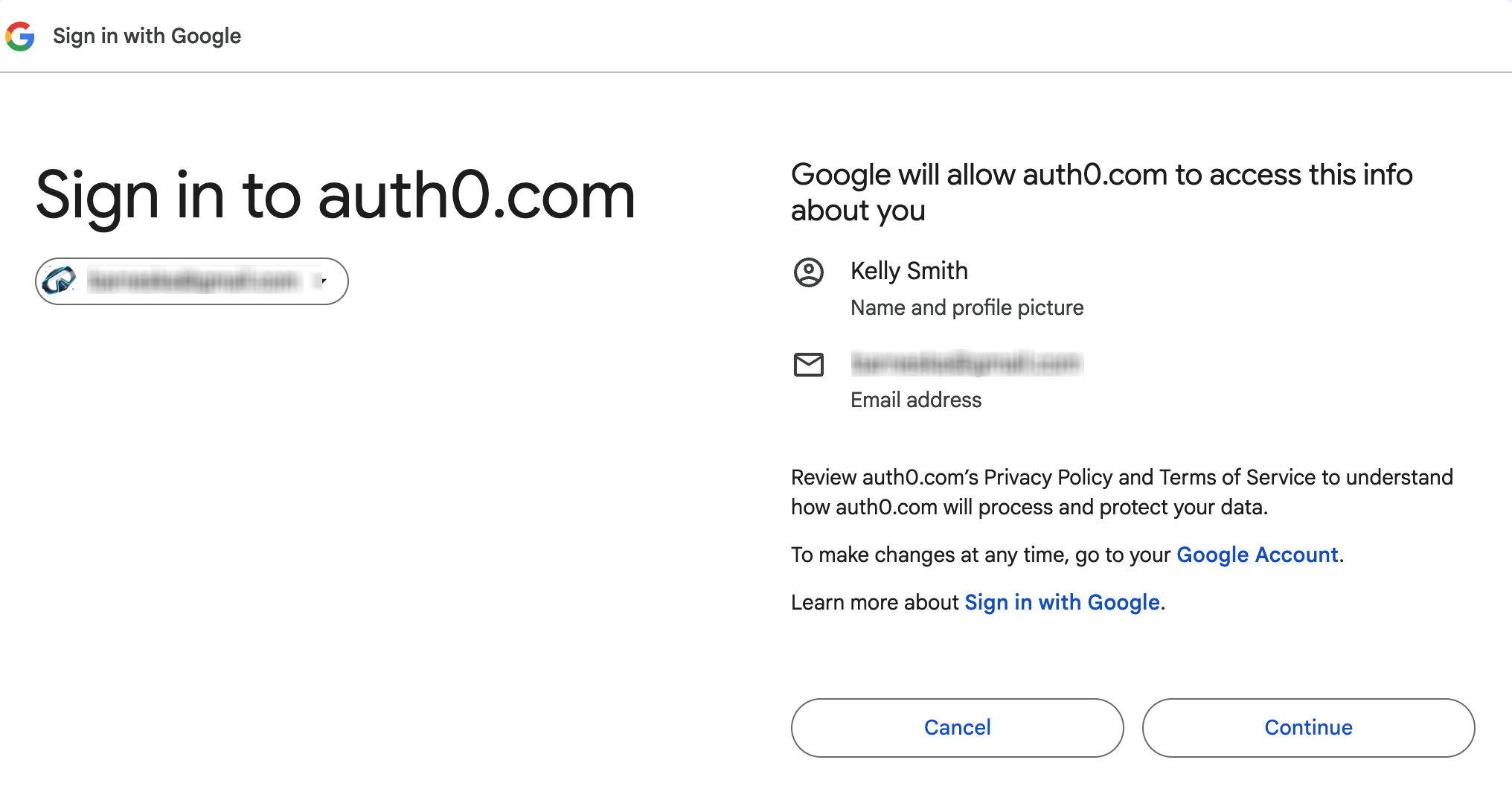
3. Confirm permissions by clicking continue
4. User is now authenticated. Enter Full Name and Company Name and select Industry Code
5. User will see dashboard upon login - the landing page will be empty on first login, but upon booking some orders, the information will start filling in. Select + Book New Campaign in the top right to jump right into booking a first order.\
Alternatively, select [**Campaigns**](/naviga-propel-end-user/propel-advertiser-user/campaigns.md) or [**Gallery**](/naviga-propel-end-user/propel-advertiser-user/gallery.md) on the left to continue
---
# Agent Instructions
This documentation is published with GitBook. GitBook is the documentation platform designed so that both humans and AI agents can read, navigate, and reason over technical content effectively. Learn more at gitbook.com.
## Querying This Documentation
If you need additional information that is not directly available in this page, you can query the documentation dynamically by asking a question.
Perform an HTTP GET request on the following URL with the `ask` and `goal` query parameters:
```
GET https://docs.navigaglobal.com/naviga-propel-end-user/propel-advertiser-user/creating-an-account-and-logging-in.md?ask=&goal=
```
`ask` is the immediate question: it should be specific, self-contained, and written in natural language.
`goal` is what the user is ultimately trying to achieve, the reason they need the answer. Sharing it helps GitBook give you a better, more relevant answer. A goal is most helpful when it describes the outcome the user wants rather than restating the question. For example, with `ask=how do I create an API token`, a goal like `build a script that syncs our docs to a CMS` lets GitBook tailor the answer to that use case.
The response will contain a direct answer to the question and relevant excerpts and sources from the documentation.
Use this mechanism when the answer is not explicitly present in the current page, you need clarification or additional context, or you want to retrieve related documentation sections.
 2. The user will be directed to a google login screen. Either enter google credentials, or select desired account if you already are logged into google chrome.