> For the complete documentation index, see [llms.txt](https://docs.navigaglobal.com/writer/llms.txt). Markdown versions of documentation pages are available by appending `.md` to page URLs; this page is available as [Markdown](https://docs.navigaglobal.com/writer/8.1.6/user-guide/user-guide/tabs.md).
# Right Sidebar
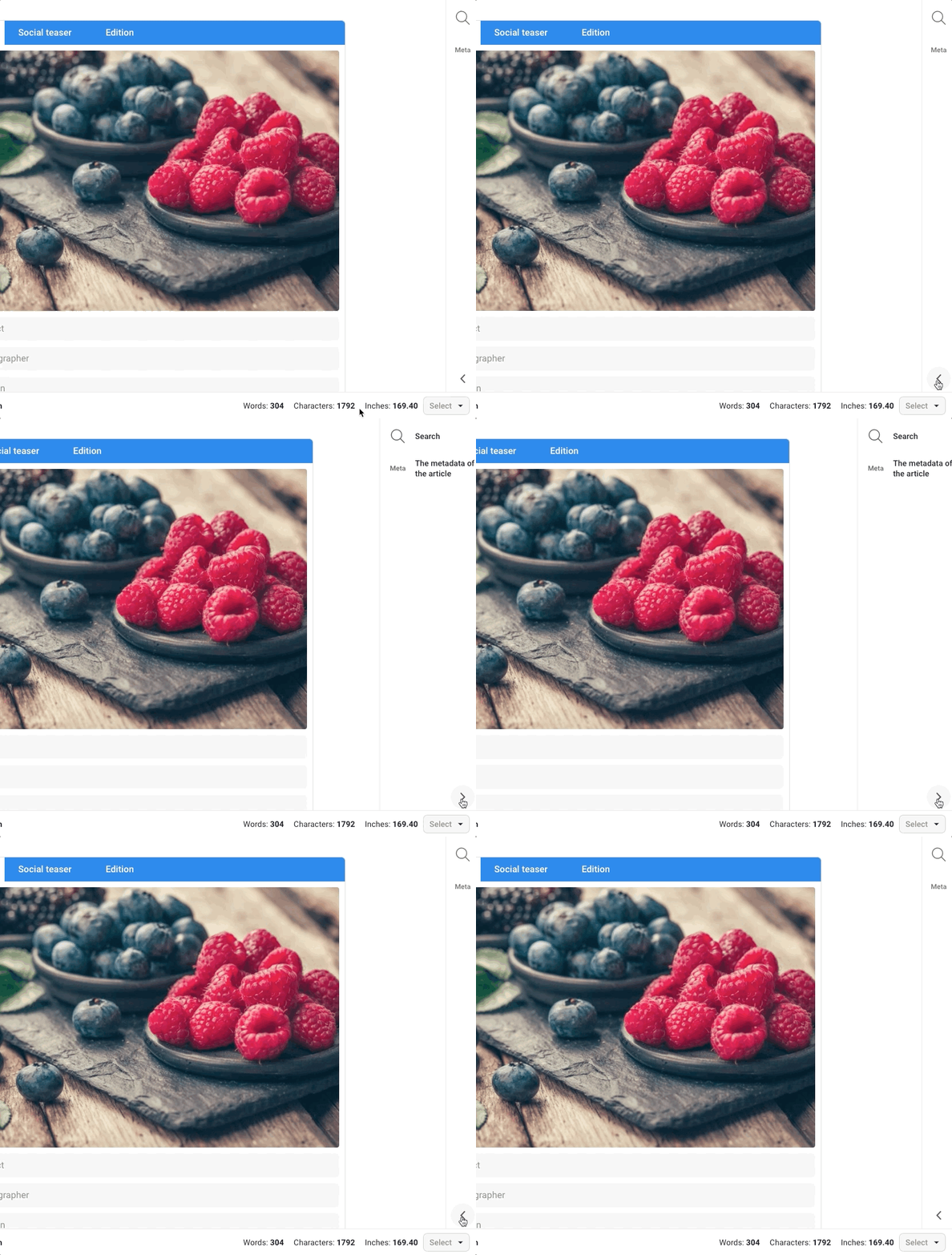
The content area can be configured with plugins that are displayed in the sidebar area. You see different buttons that includes different content. What icon that includes what content is configuration, so what you see below is perhaps different in your environment. The buttons can be configured to show icons or text.
The sidebar is shown as you click on buttons, or use **cmd/ctrl + shift + E**. In the bottom you see a chevron you can click on. When you do so you see the whole name.
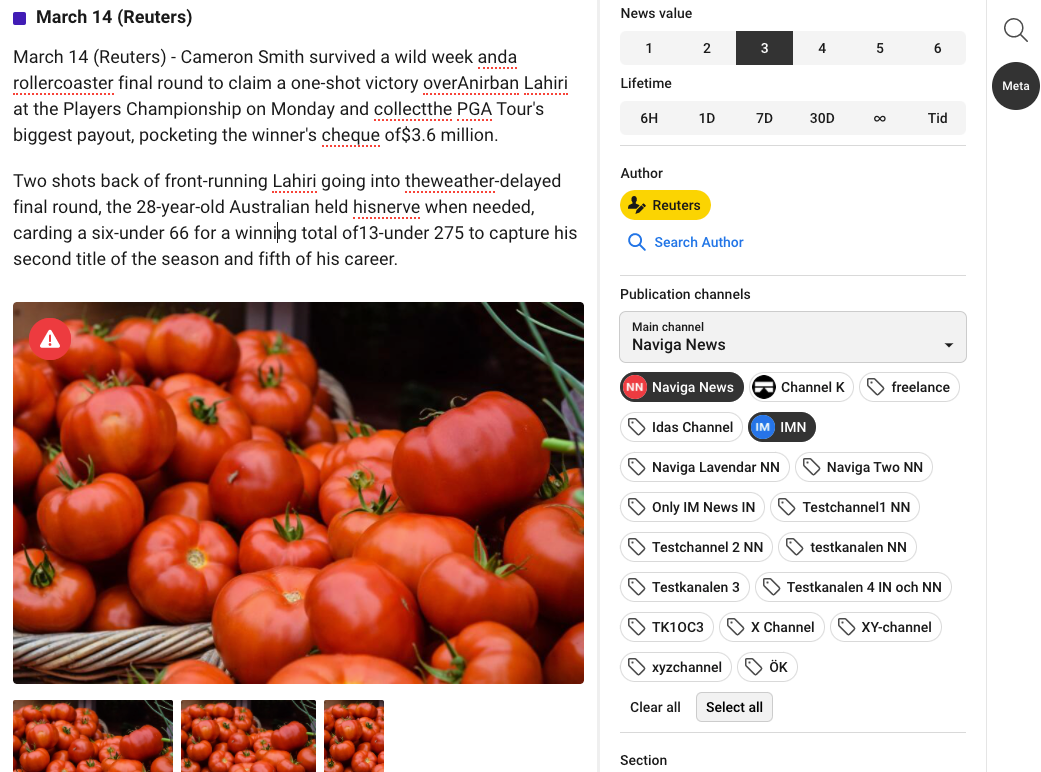
An example of how is looks when the user has clicked on Meta.
**Configuration instruction** can be founder under [Admin Guide / Configurations Guide / Right Sidebar](/writer/8.1.6/admin-guide/configurations-guide/right-sidebar.md)