

Editing/Updating Campaign Lines
This set of APIs are intended to make changes to campaign lines which were created from an external system via API.
To Edit a campaign line, in Swagger we have separated this into two distinct sections - Digital Lines and Print lines are quite different so they both have their own Endpoints. In each, there will be a GET and a POST.
For any given update, use the GET first to get one or more lines and then do the POST to update with any changes made to the data retrieved in the GET. These are using the same fields already described in the Consolidated Create API, so please refer to the field table there for field by field expectations
Digital Lines

In Swagger, expand the GET /api/digitallines/get
The example Value at the top displays the sample output you should expect on a successful GET
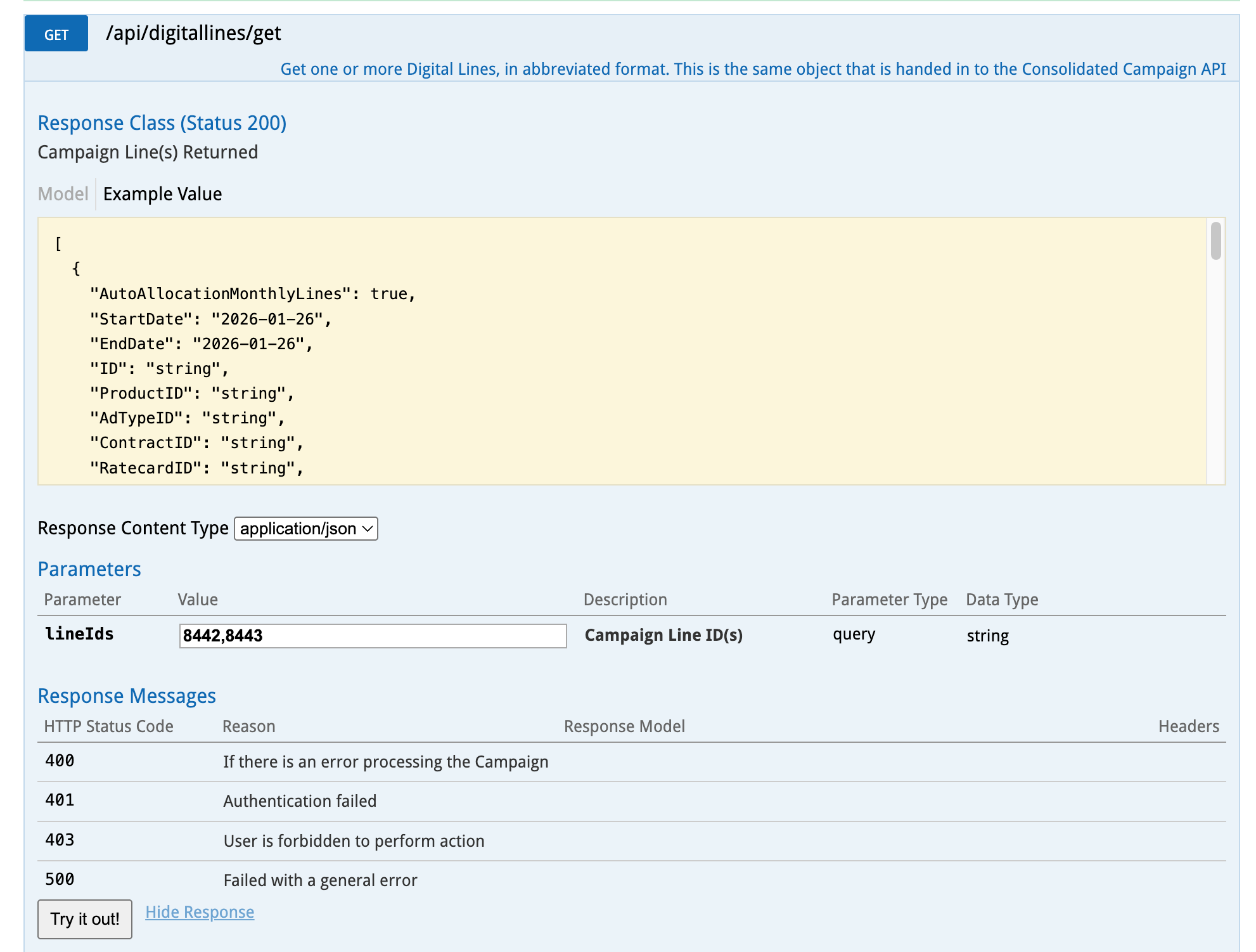
The line ID's passed in the parameters are required to indicate which line or lines are to be returned. Enter them here as comma separated values as shown above. Click Try it Out to see results.
The response body will be in the format needed to then Post the update back into Naviga ad
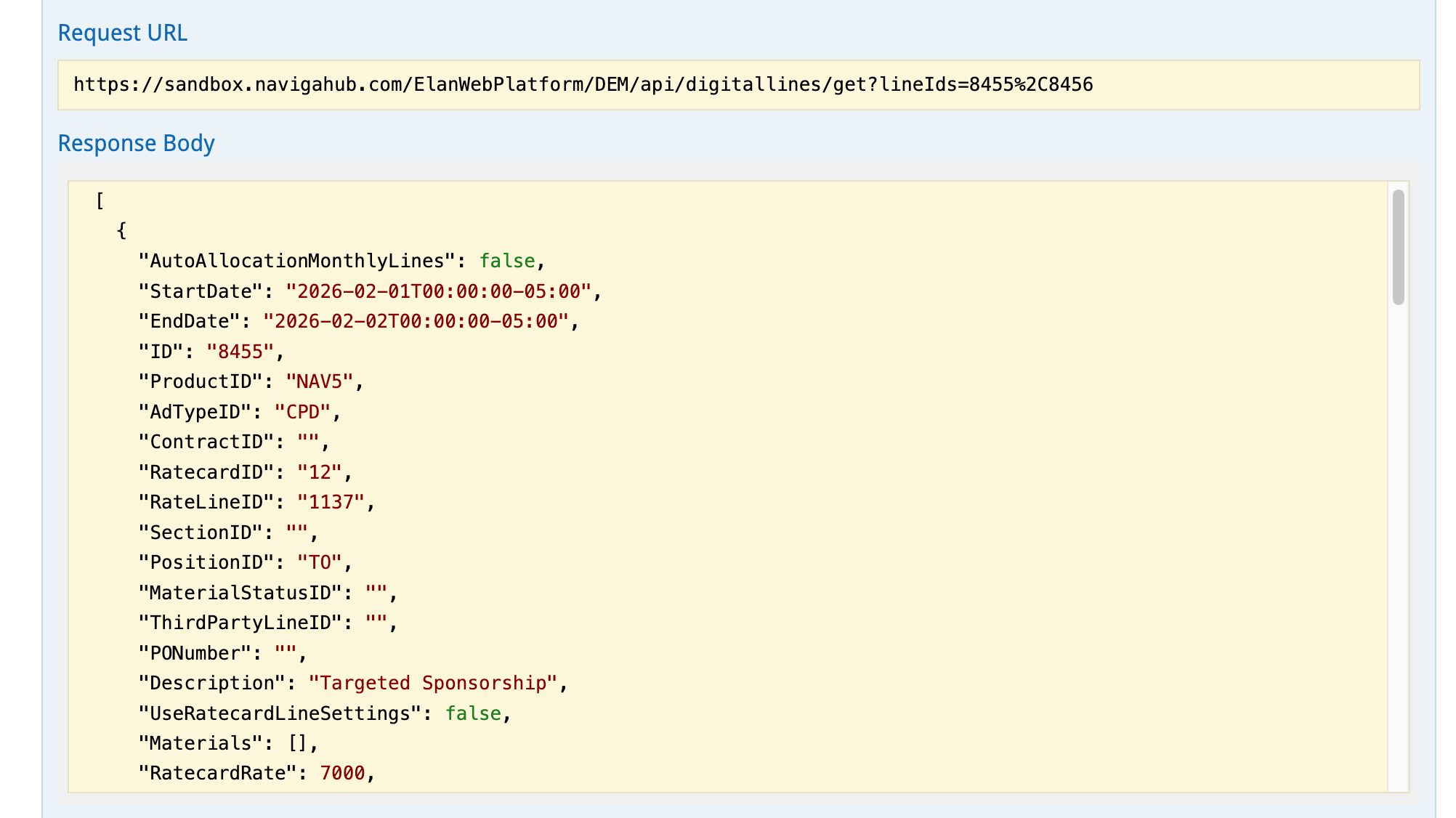
Copy the response body and paste into the Parameters text box of the endpoint POST /api/digitallines/update
Make any desired changes to the data and click Try it out to update the campaign lines.
Print Lines

In Swagger, expand the GET /api/printlines/get
The Example Value at the top displays the sample output you should expect on a successful GET
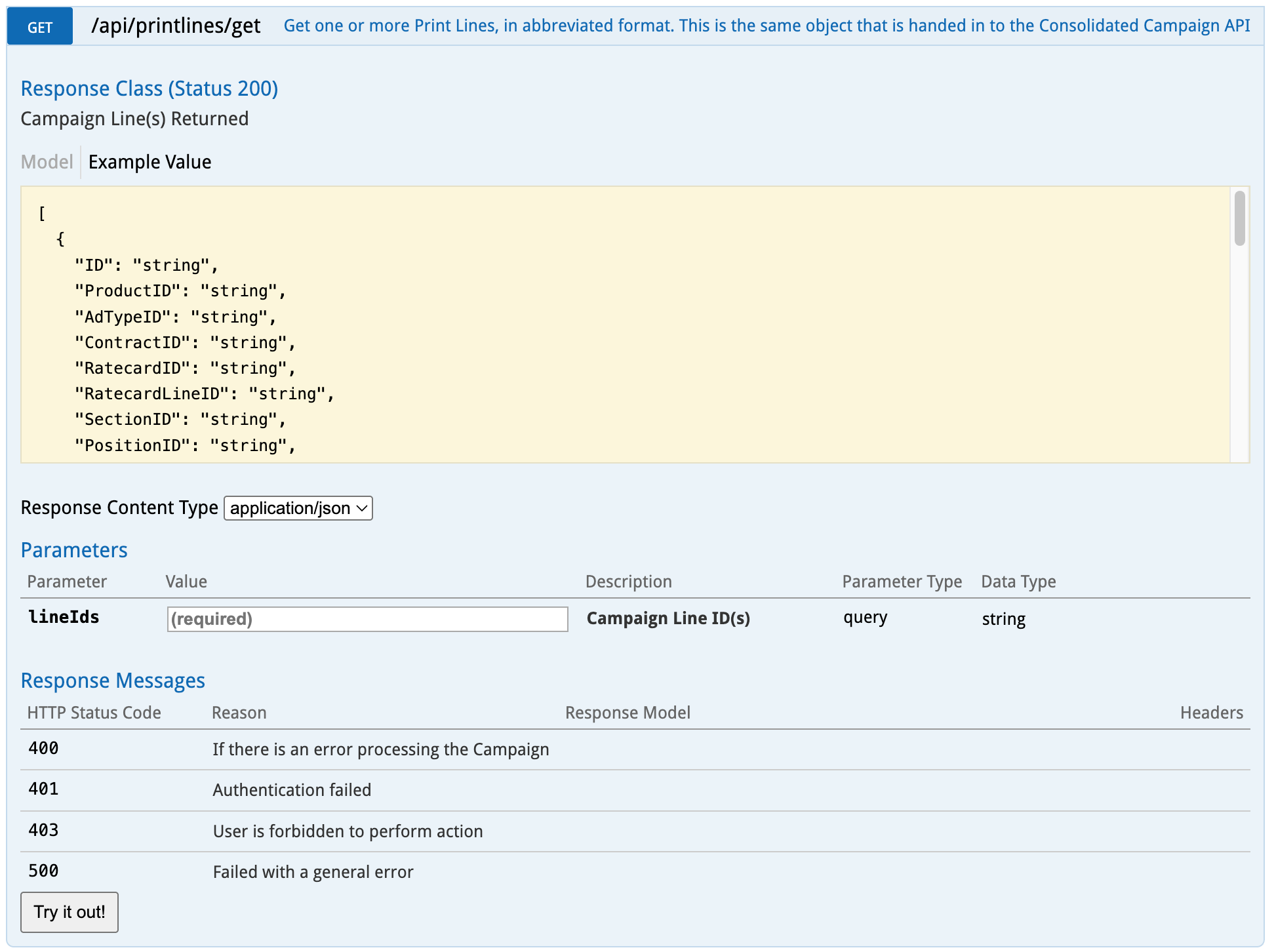
The line ID's passed in the parameters are required to indicate which line or lines are to be returned. Enter them here as comma separated values. Click "Try it Out" button to see results.
The response body will be in the format needed to then Post the update back into Naviga ad
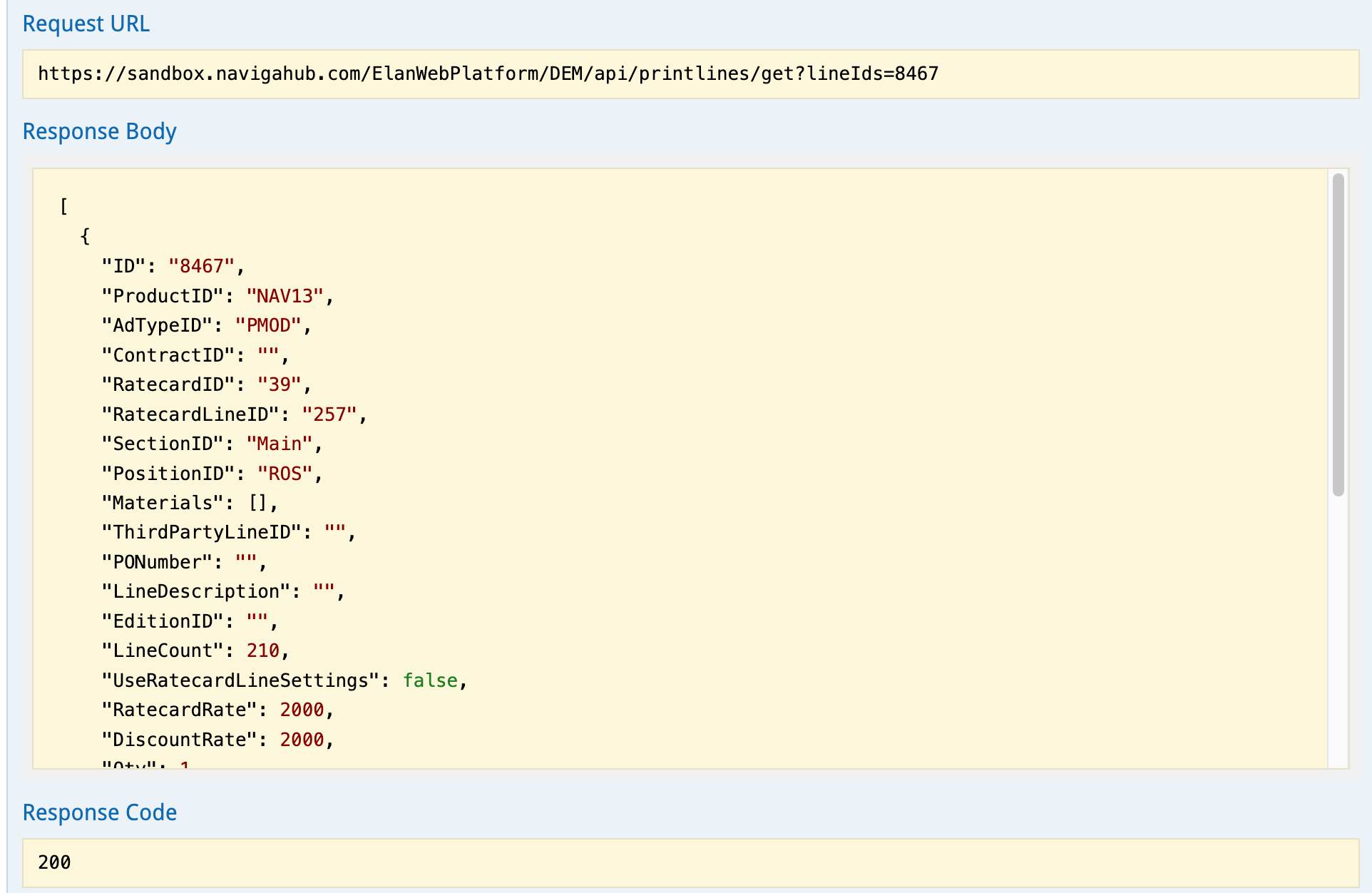
Copy the response body and paste into the Parameters text box of the endpoint POST /api/printlines/update
Make any desired changes to the data and click "Try it out" to update the campaign line(s).
Was this helpful?